Setup email for Mozilla Thunderbird
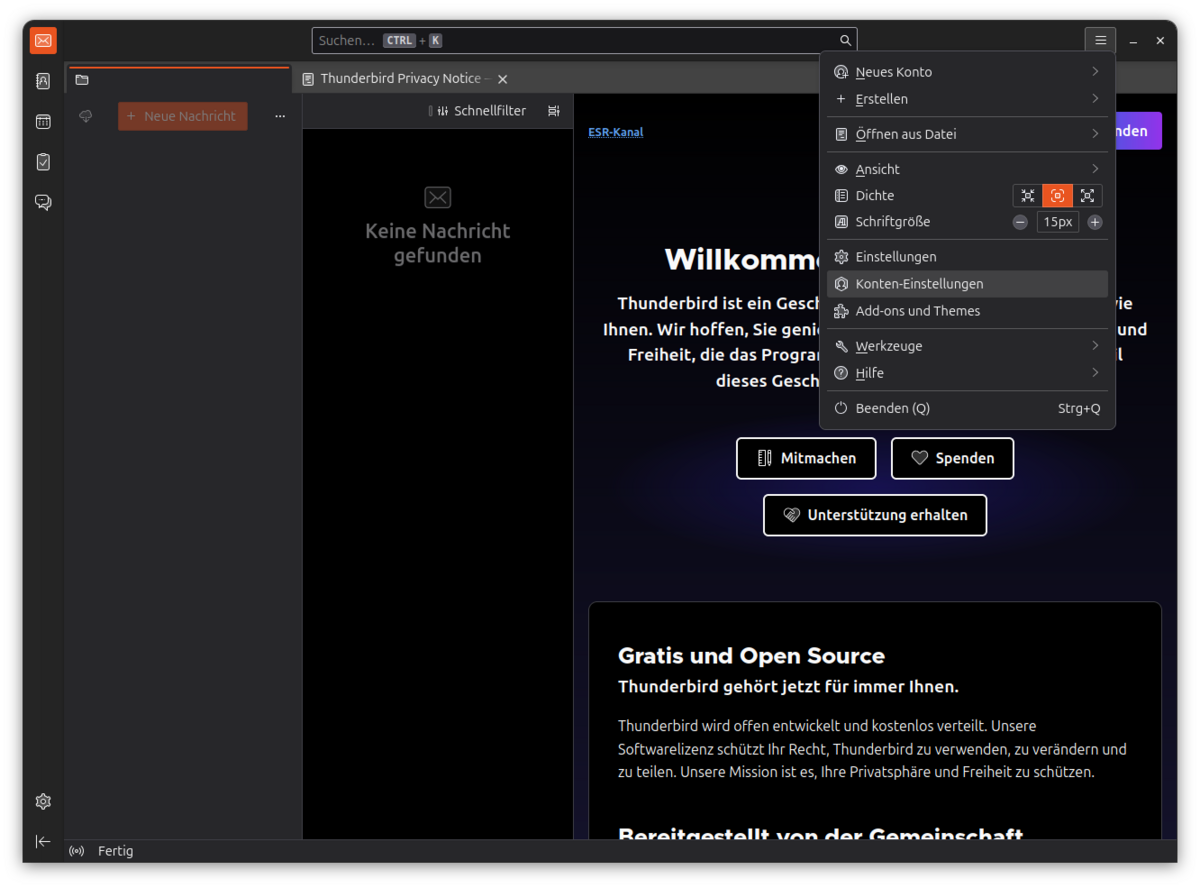
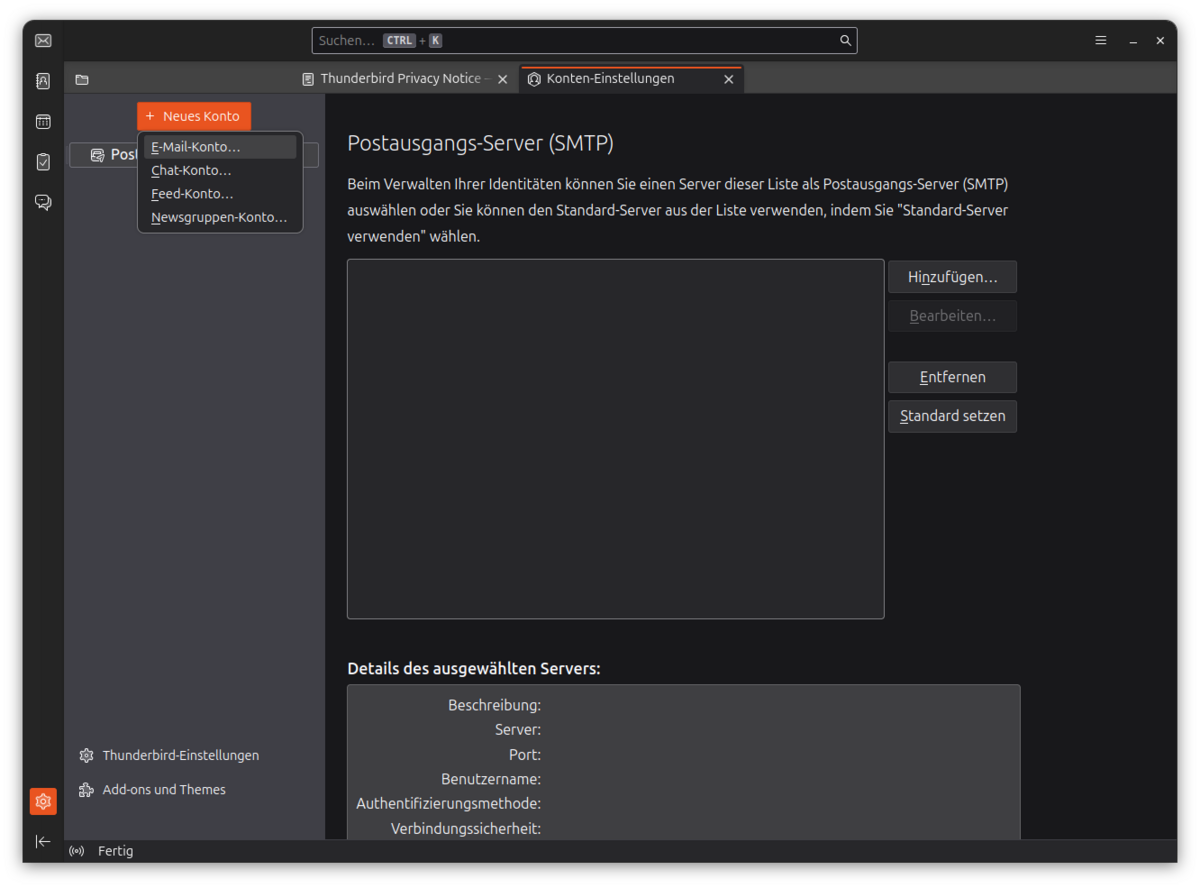
To set up a new account, select Account settings from the burger menu. In the top-left corner, select New account →Email account. Enter your name, email address and an app password.
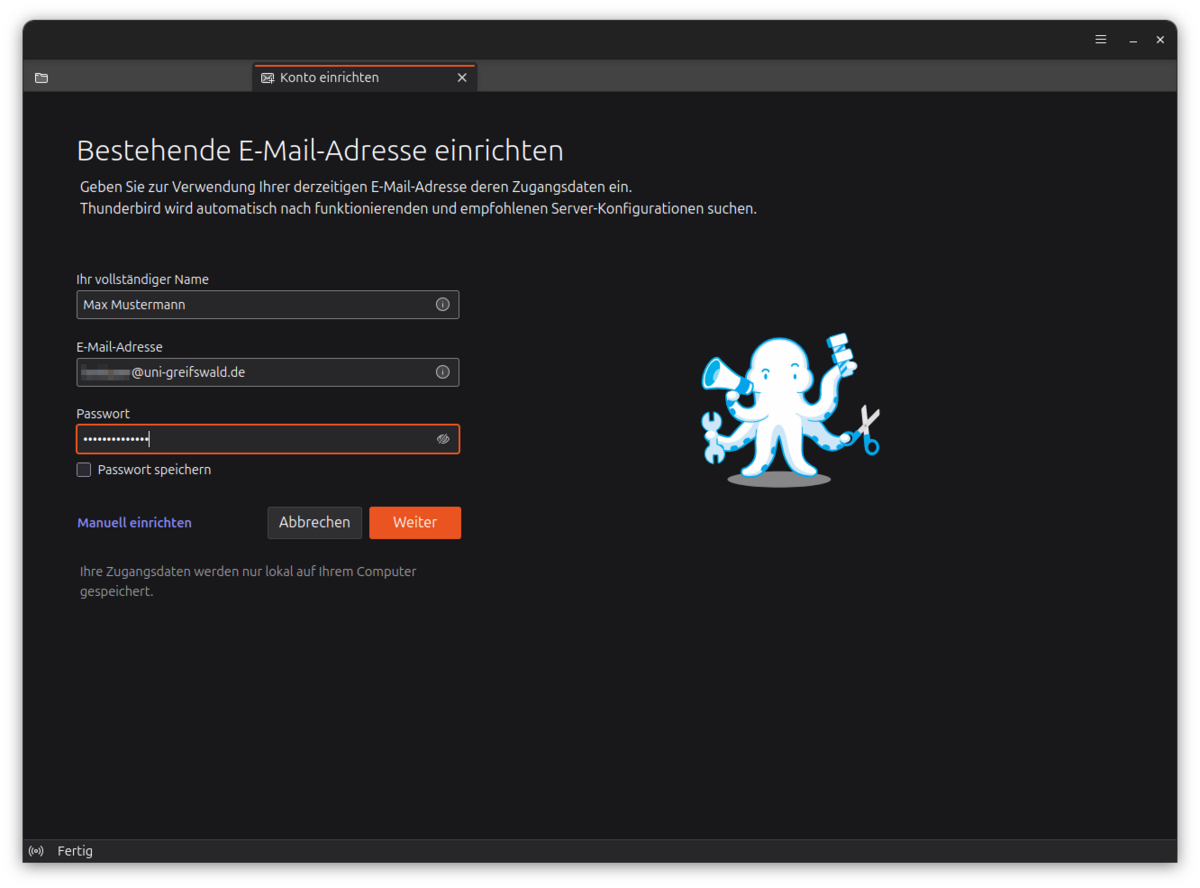
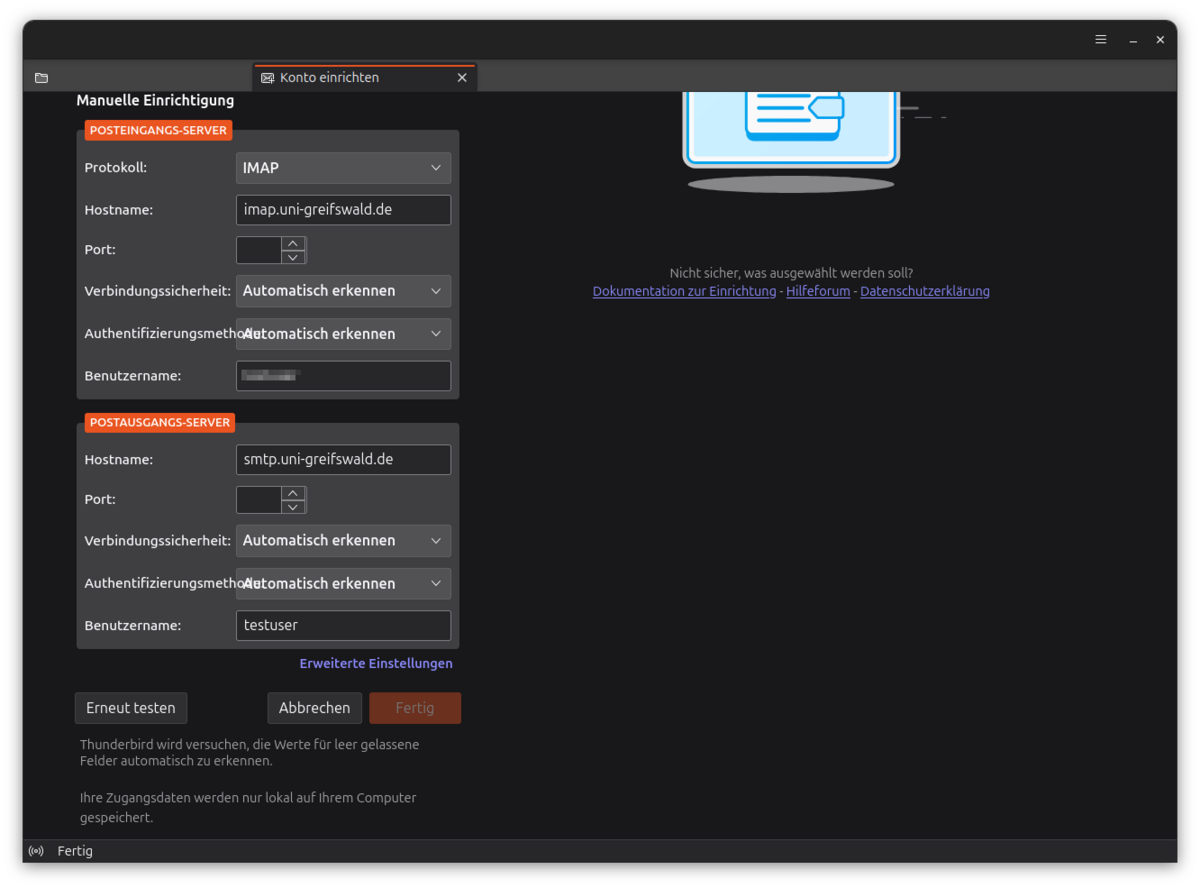
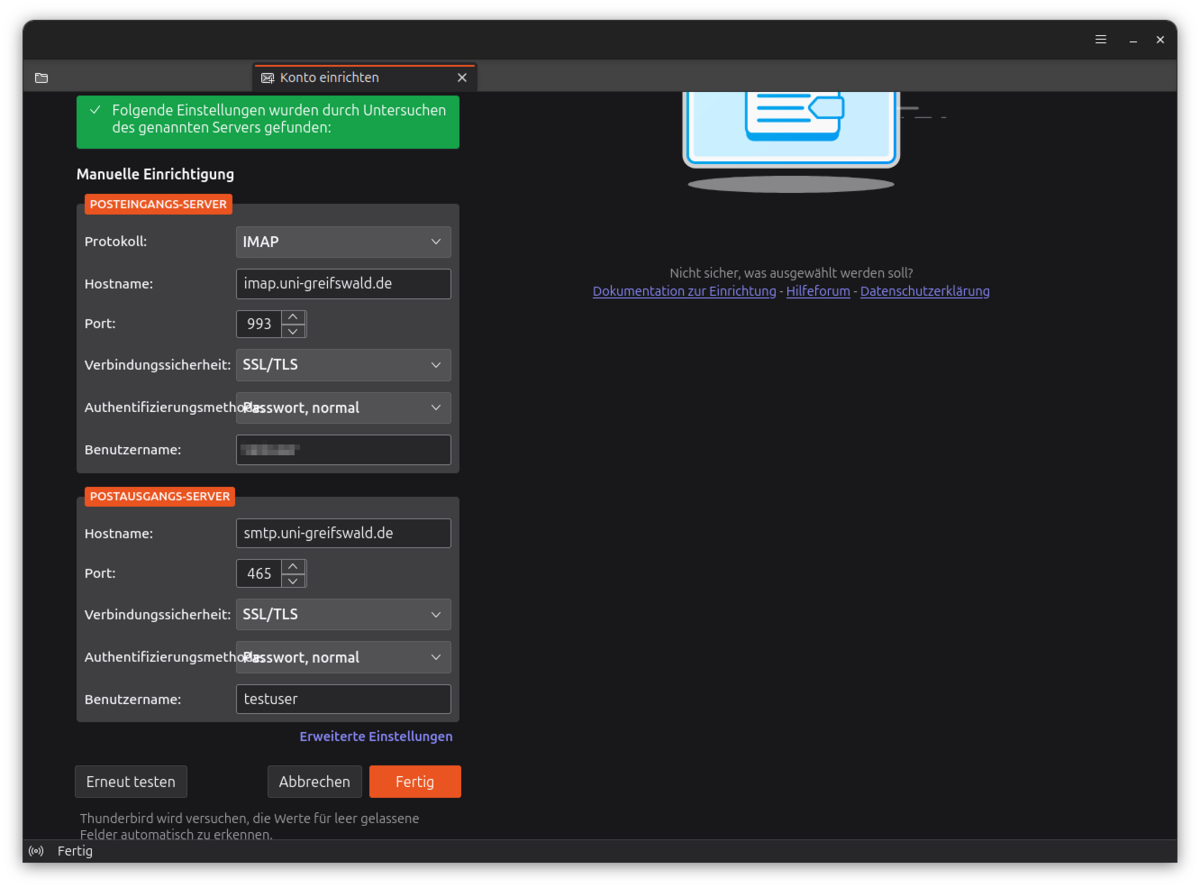
Once you have entered the details, you can click on Set up manually at the bottom. In the window that appears, edit the server addresses as follows:
- Incoming mail server: imap.uni-greifswald.de
- Outgoing mail server: smtp.uni-greifswald.de
Please also check that IMAP is set as the protocol and that the URZ username is entered for both the incoming and outgoing mail servers. Then click Test again. Thunderbird will now automatically fill in the remaining details (port, SSL, authentication). Click Done to complete the email setup.