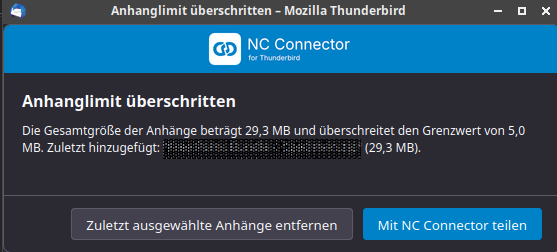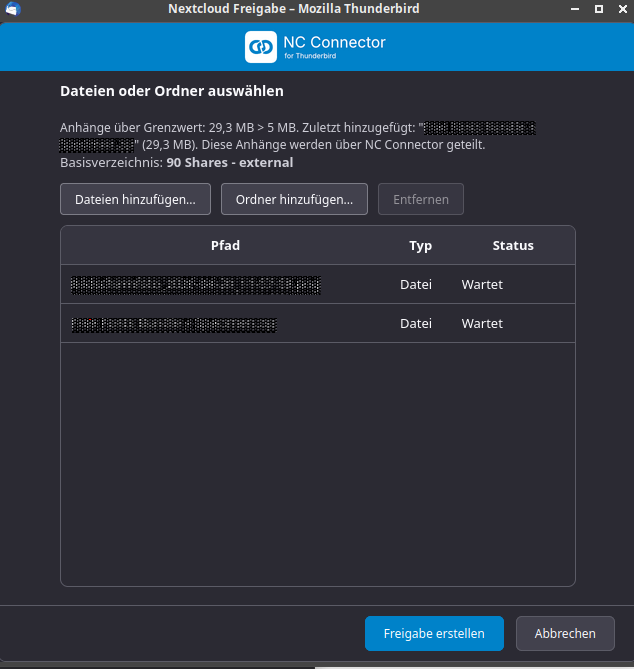
Instead of sending large files by email, you should use Nextcloud download links. The Thunderbird add-on NC Connector allows you to automatically upload all files, or files above a certain size, to Nextcloud and insert the relevant link into the email.
Installation
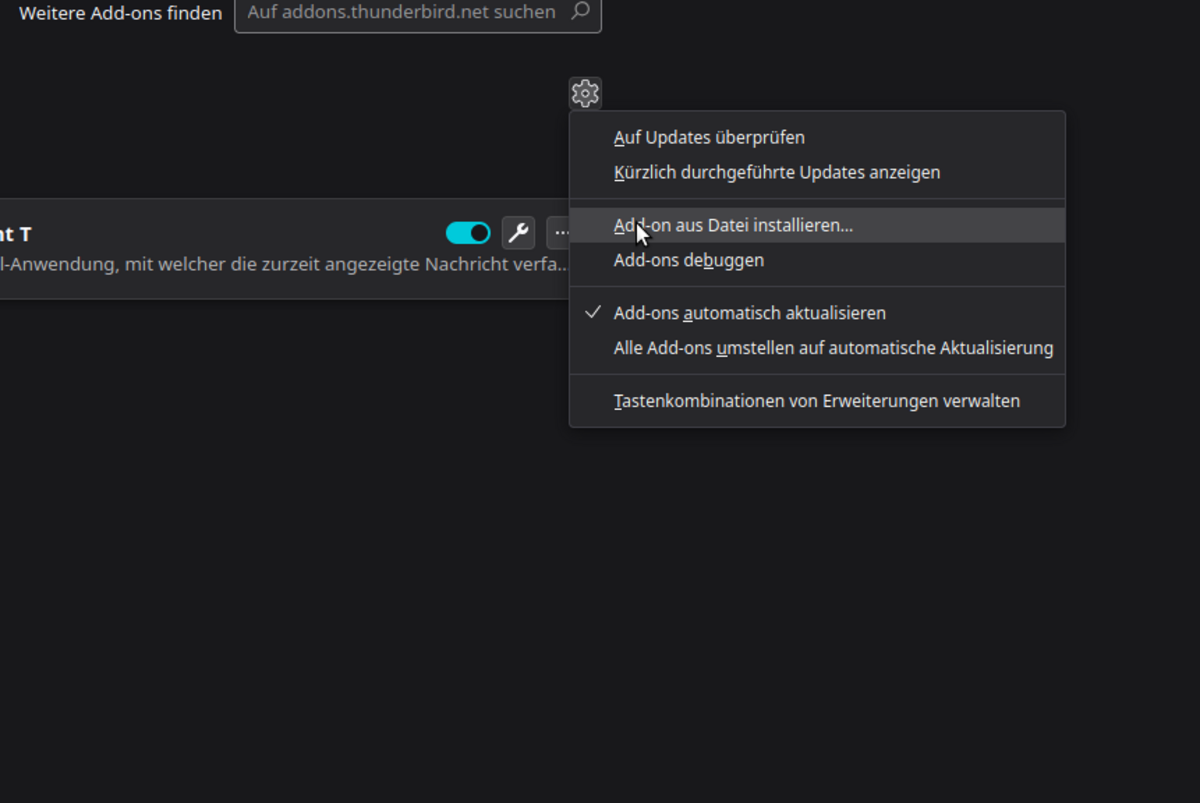
The latest version is available to download directly from the developer. Please ensure you use at least version 3.0.3 (right-click → Save target as…), as this fixes a bug. The downloaded .xpi file can be opened and installed in Thunderbird via the burger menu under Add-ons and Themes by clicking on the cog icon and selecting Install add-on from file.
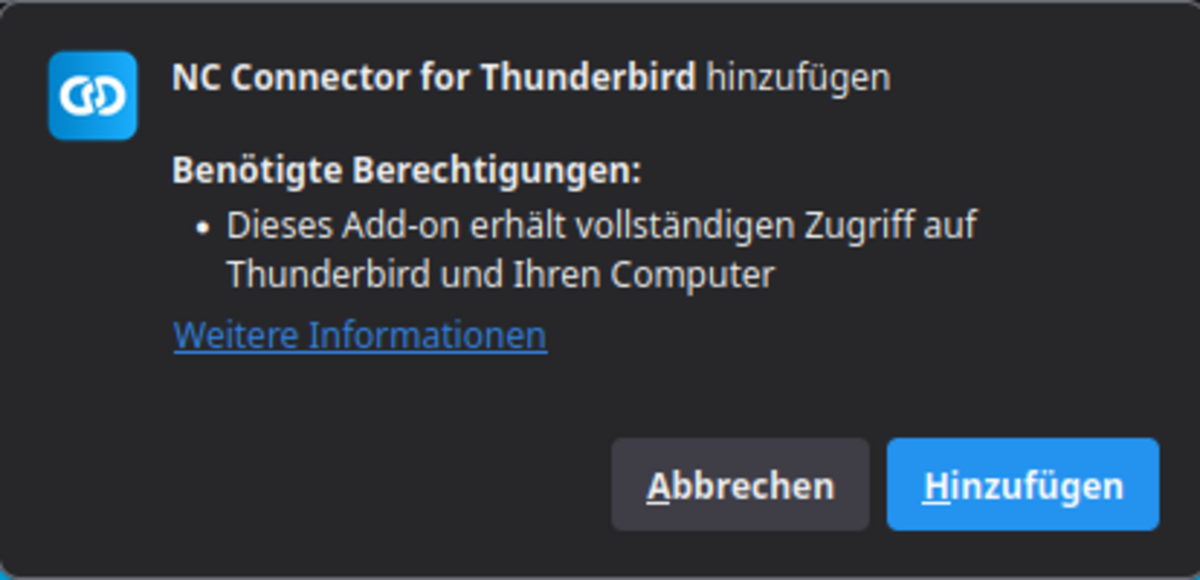
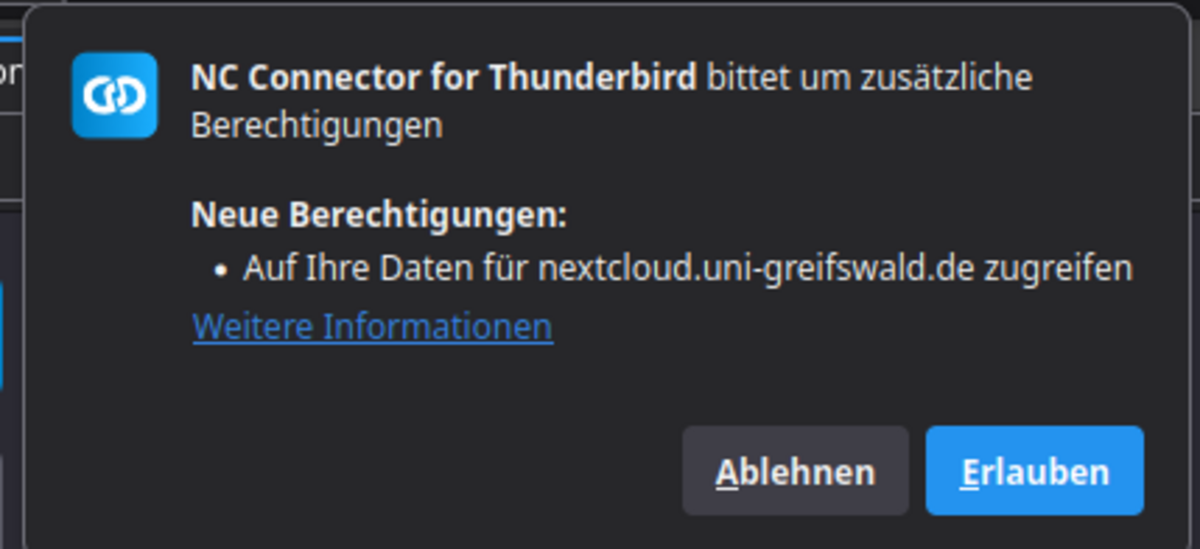
You will need to grant the necessary permission in the dialogue box.

Once installed, you can configure the add-on via the add-on menu by clicking on the small spanner icon next to the plugin.
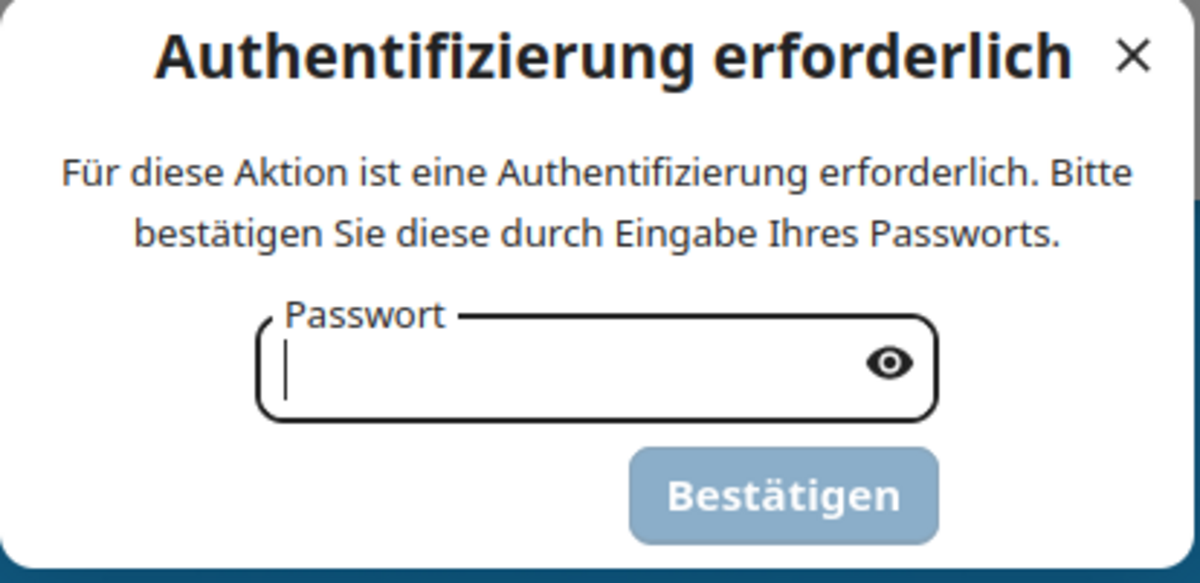
Under General, set the Nextcloud URL to https://nextcloud.uni-greifswald.de. Select Log in with Nextcloud (load app password automatically) as the authentication method. When you click Log in with Nextcloud…, Thunderbird will ask for confirmation that the plugin is allowed to open a browser. You must confirm this. You will then need to grant access to Nextcloud in the browser window.

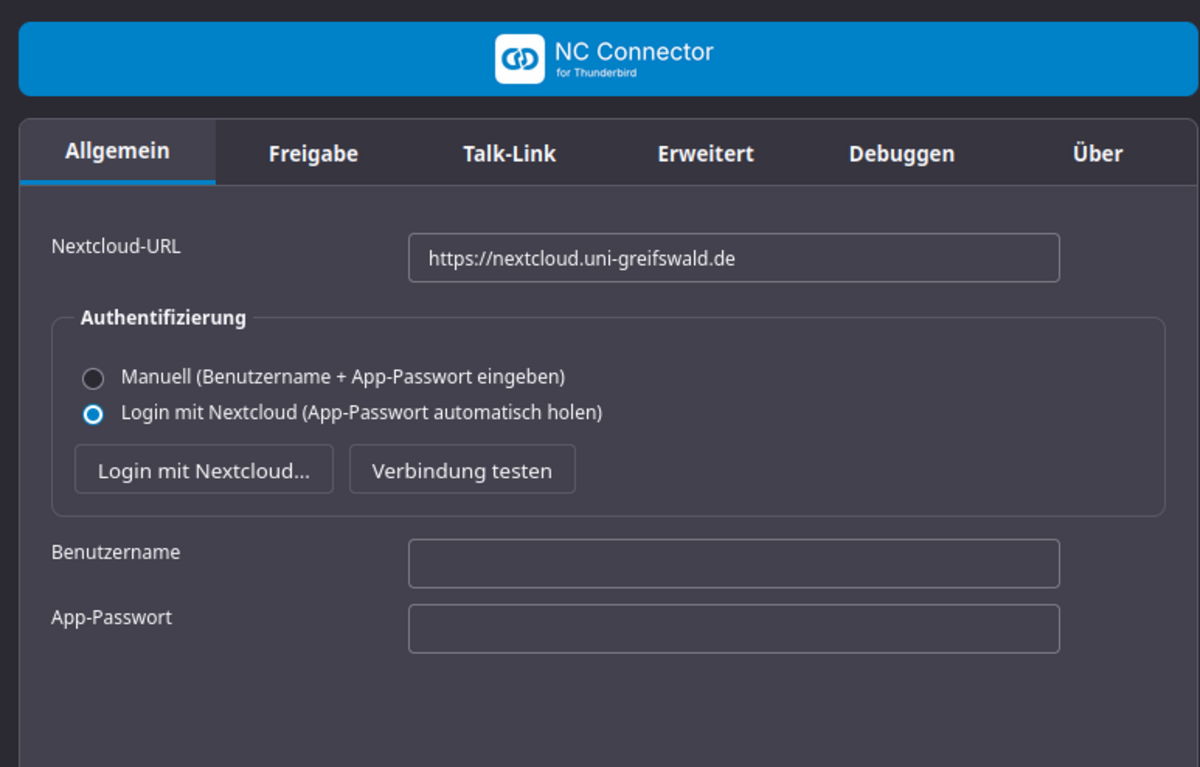

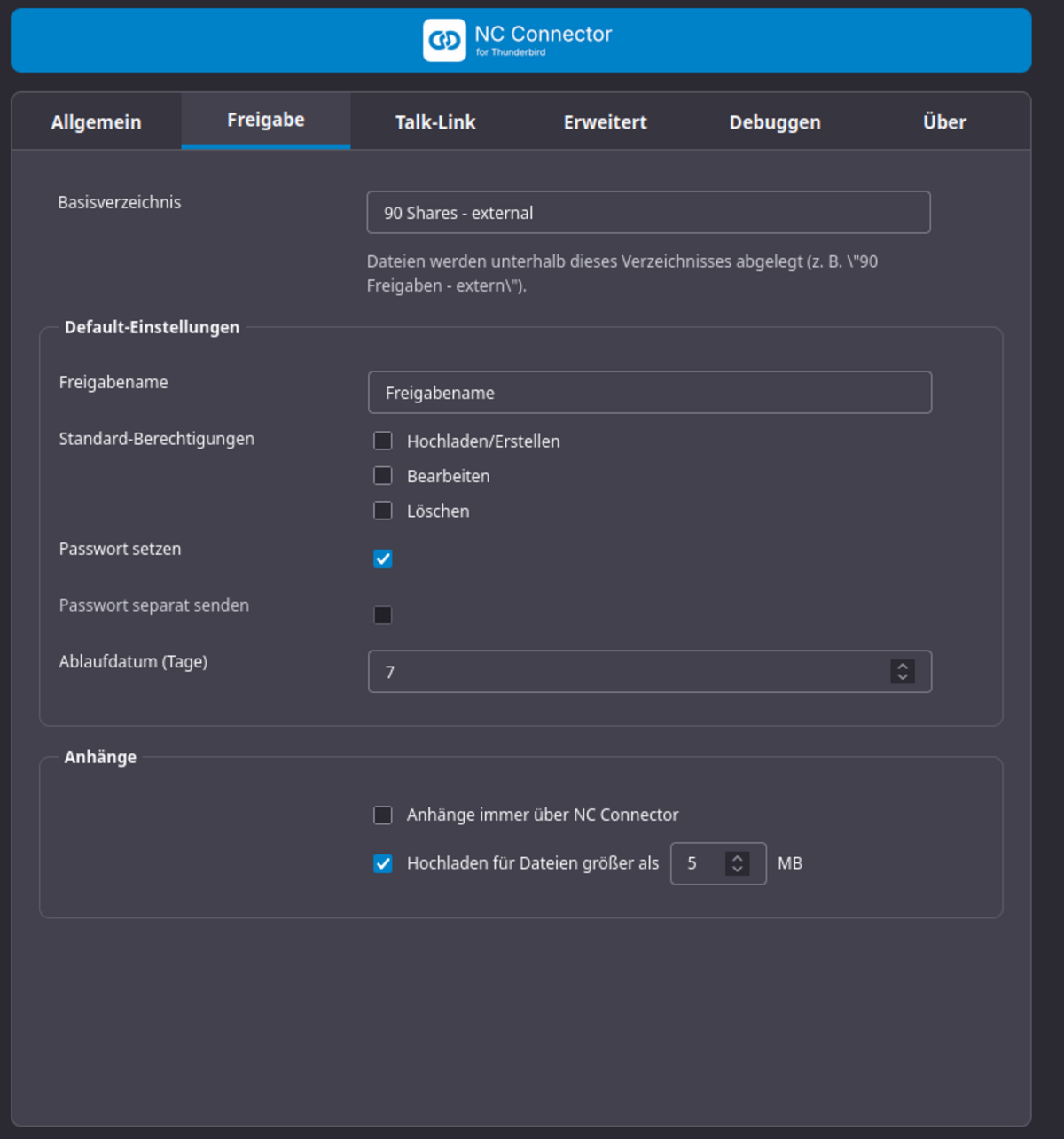
This completes the basic configuration. In the Sharing settings tab, you can configure additional settings such as the folder to be used, sharing options and a threshold for when documents should be uploaded.
By default, Thunderbird’s built-in file-sharing service is enabled. If this is the case, NC Connector’s storage limit detection will not work. To use the extension correctly, you should go to the Thunderbird settings, select Compose, then scroll down to the Attachments section and deselect the box labelled “Offer to upload files larger than 5MB”.