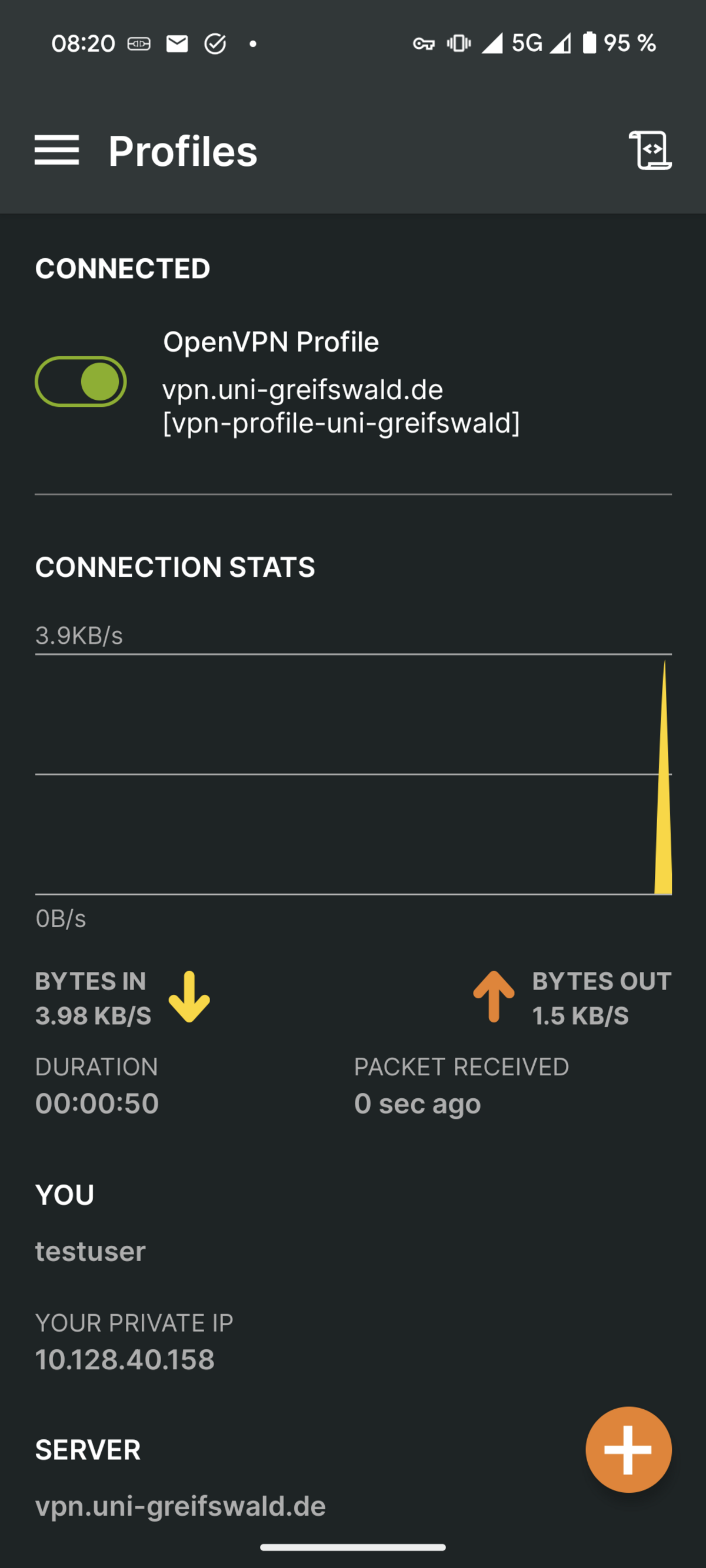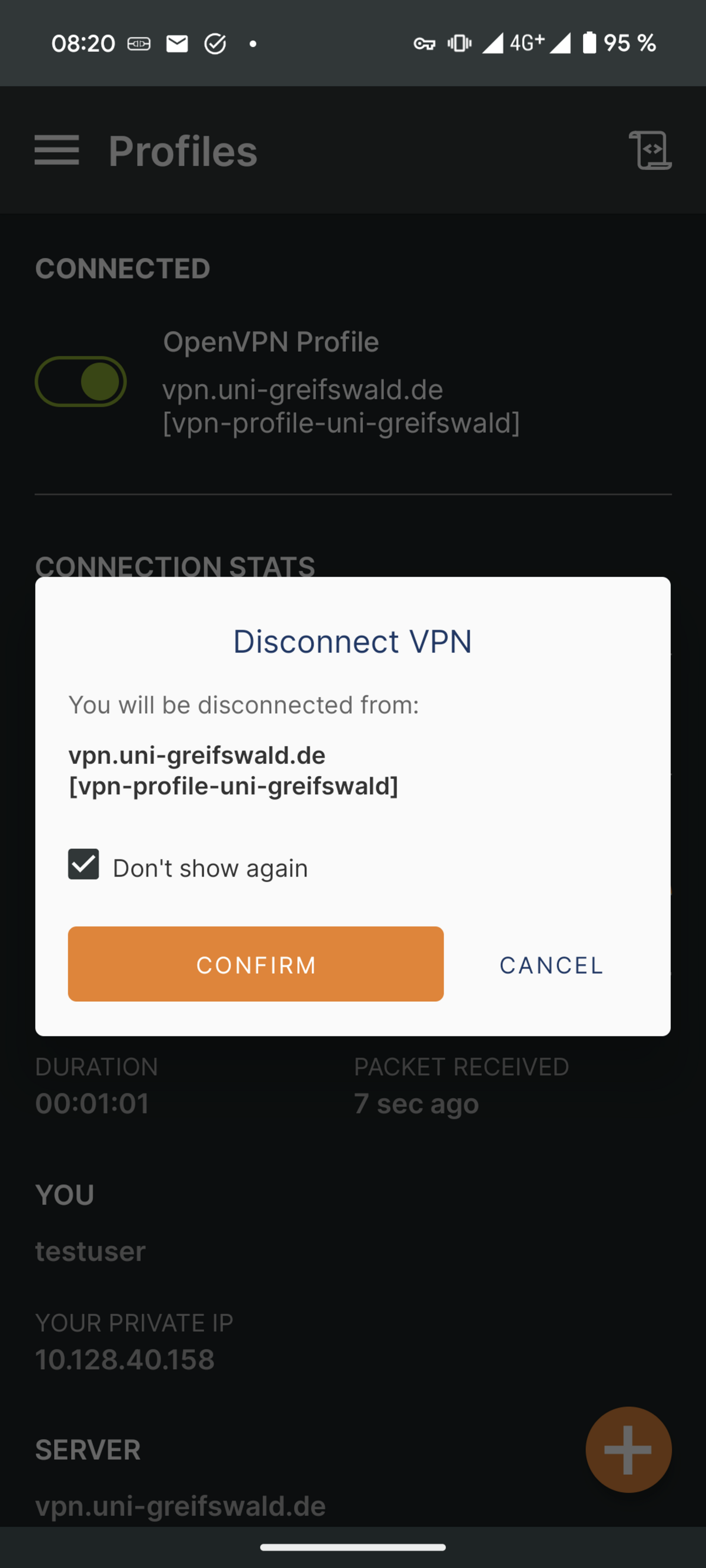
VPN setup on Android
This article explains how to set up VPN access to the university network on Android.
1. Download and install the OpenVPN Connect app
If you have not already done so, first install the OpenVPN Connect app. To do this, install it on your device via the Play Store.
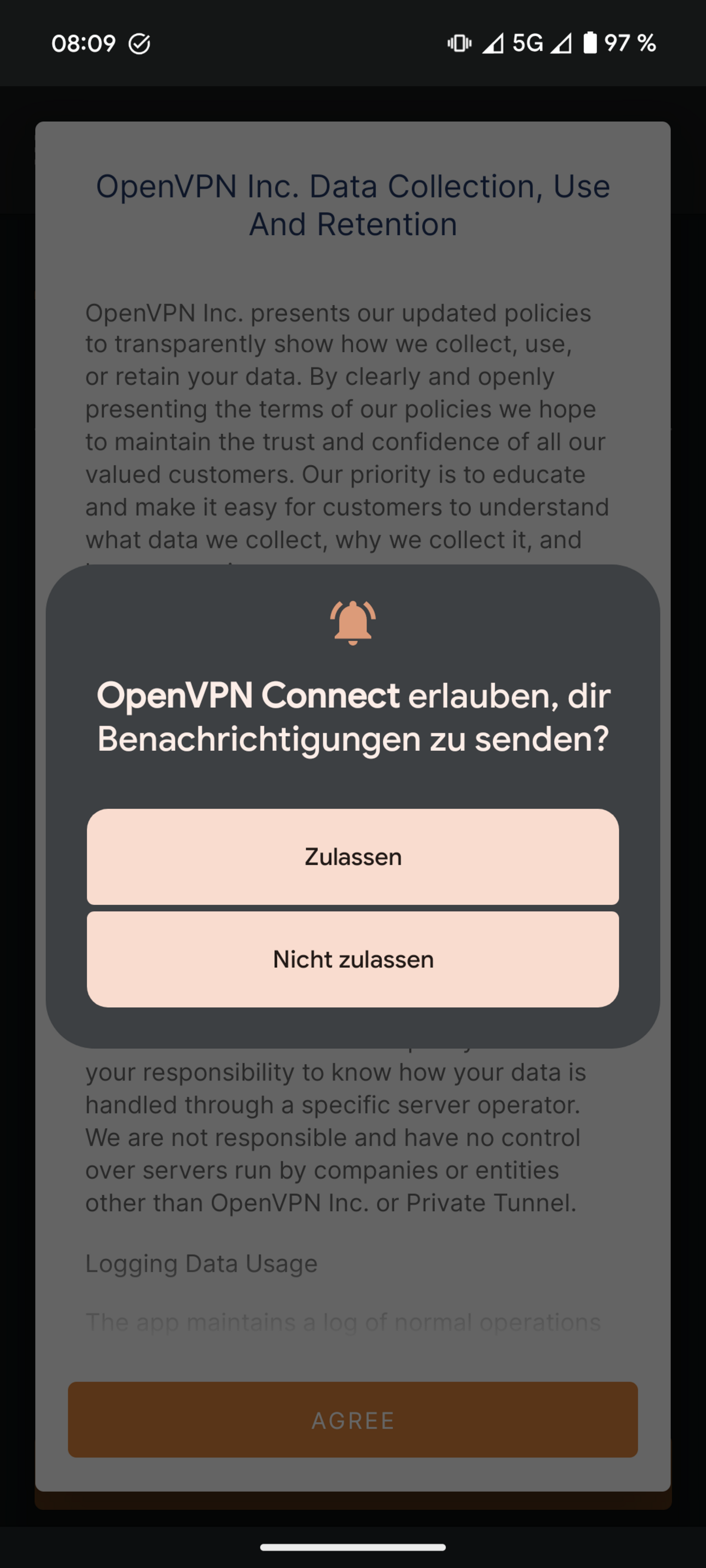
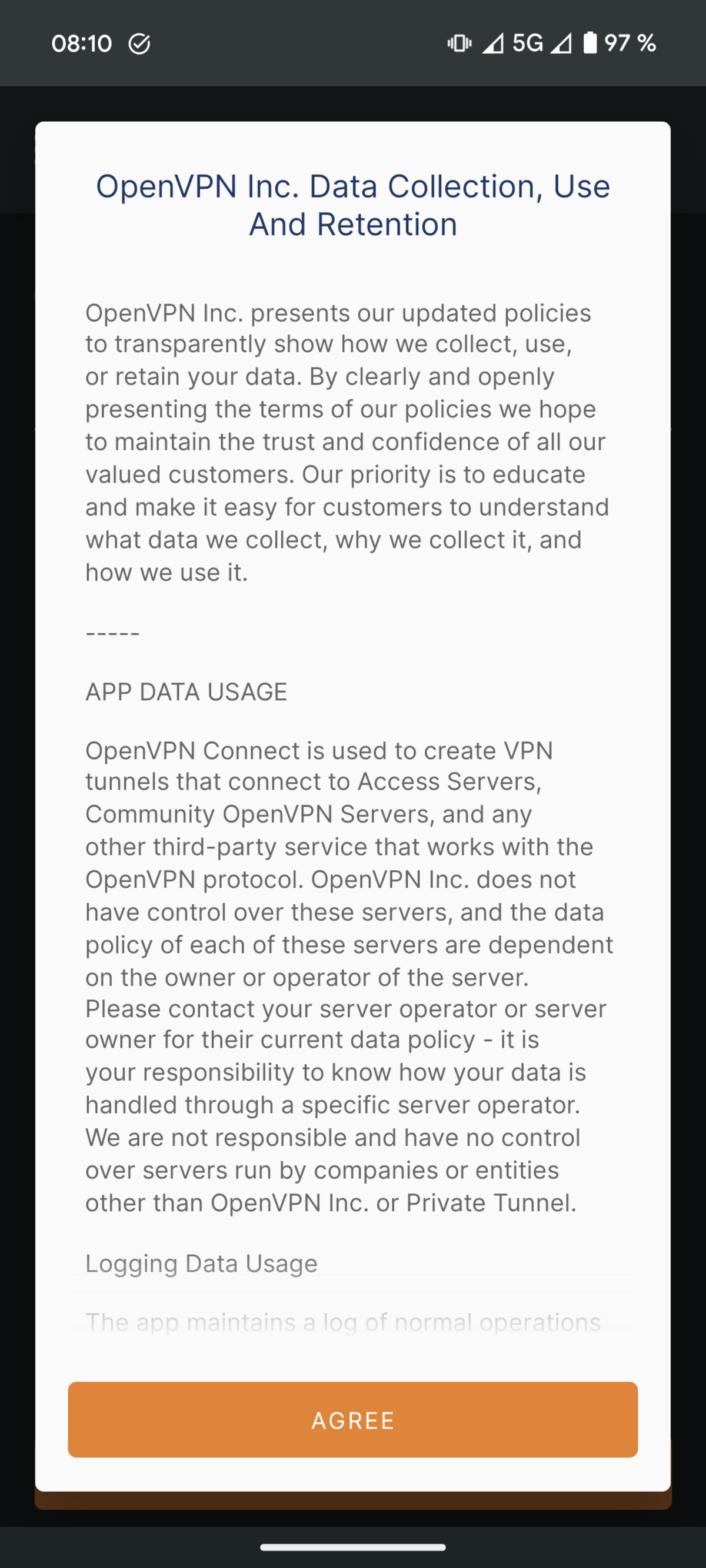
Once the installation is complete, open the OpenVPN Connect app. Confirm the privacy policy by clicking on AGREE.


2. Delete existing configuration
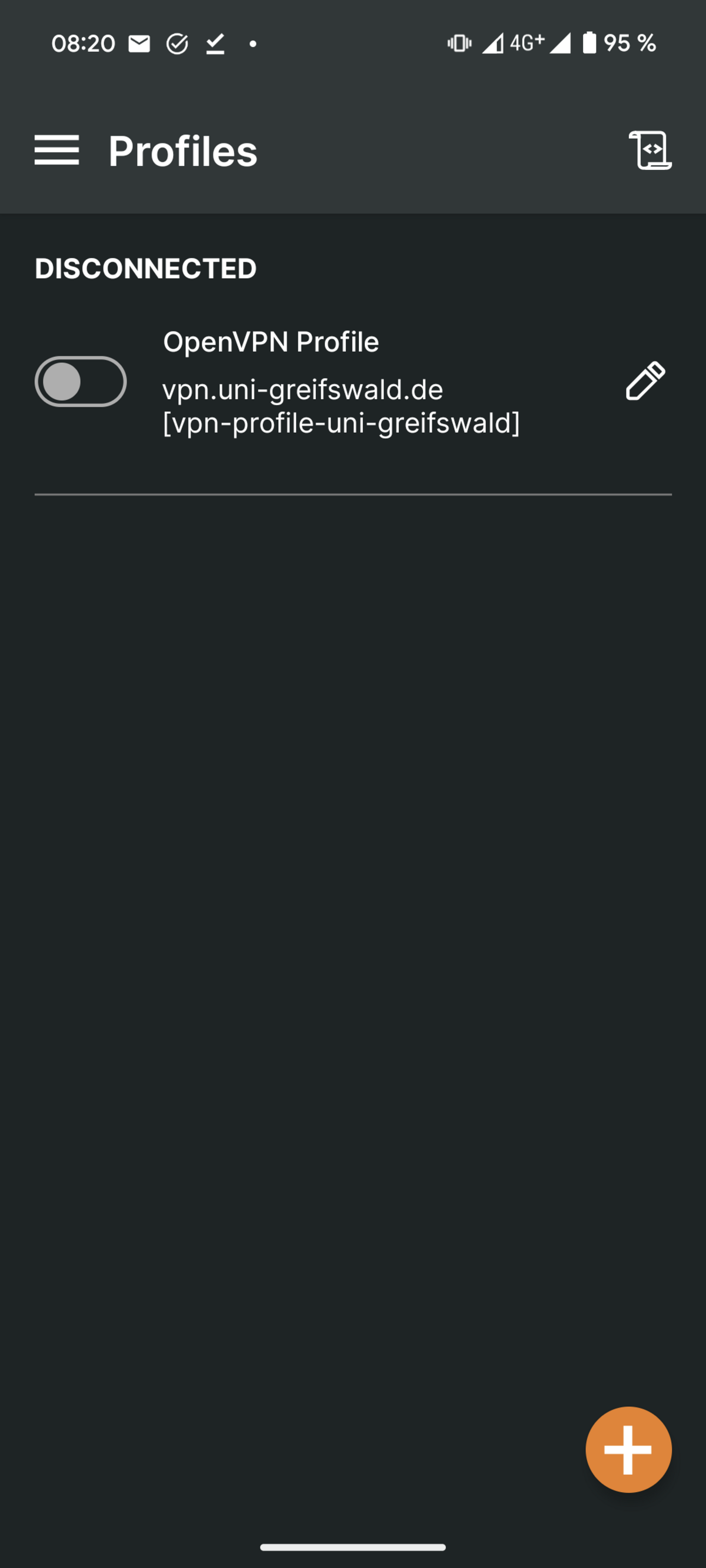
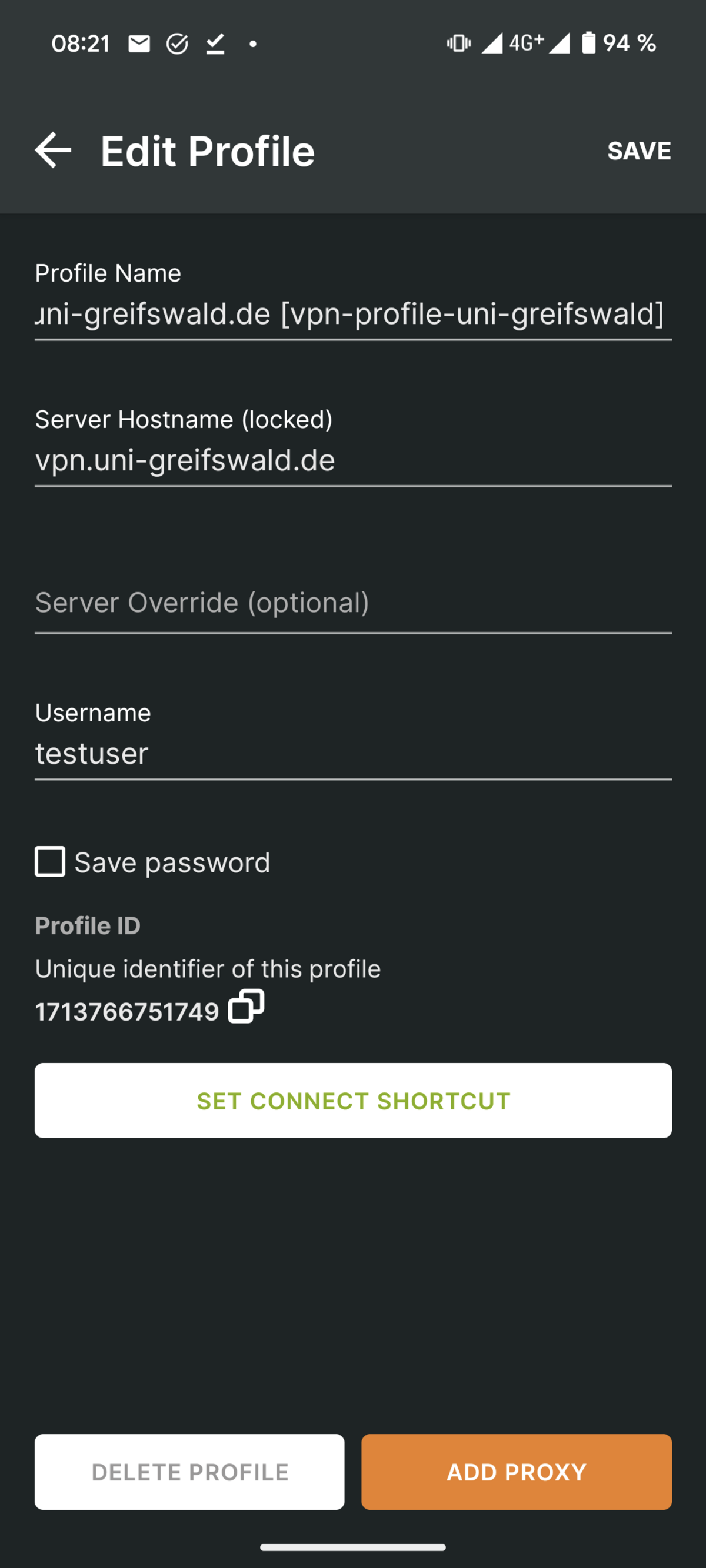
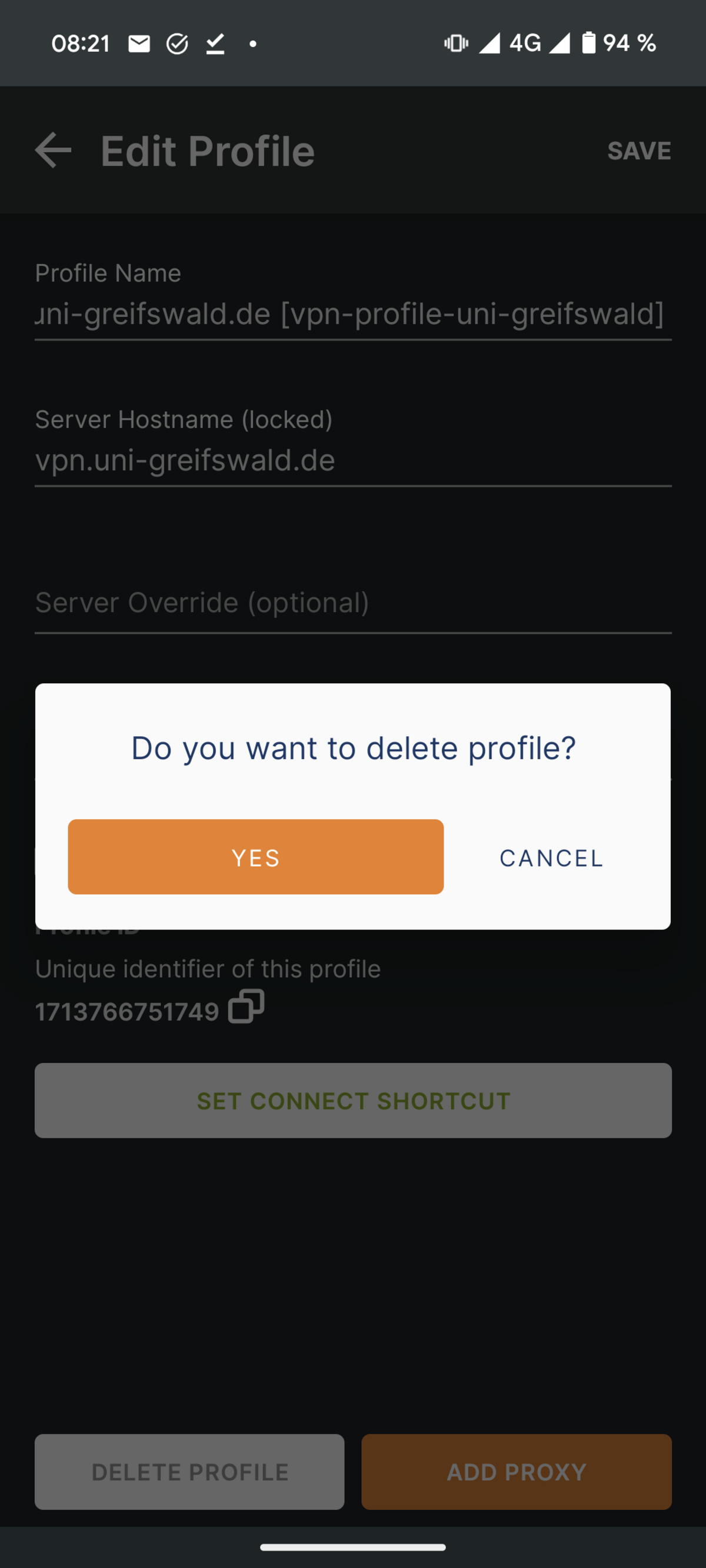
If you already have an existing VPN configuration, delete it first. To do this, open the OpenVPN Connect app. Click on the pencil to the right of the current VPN configuration to enter edit mode. Select DELETE PROFILE at the bottom. Confirm the deletion with YES.

3. Download and import VPN profile
If you have not already done so, please download the VPN profile.
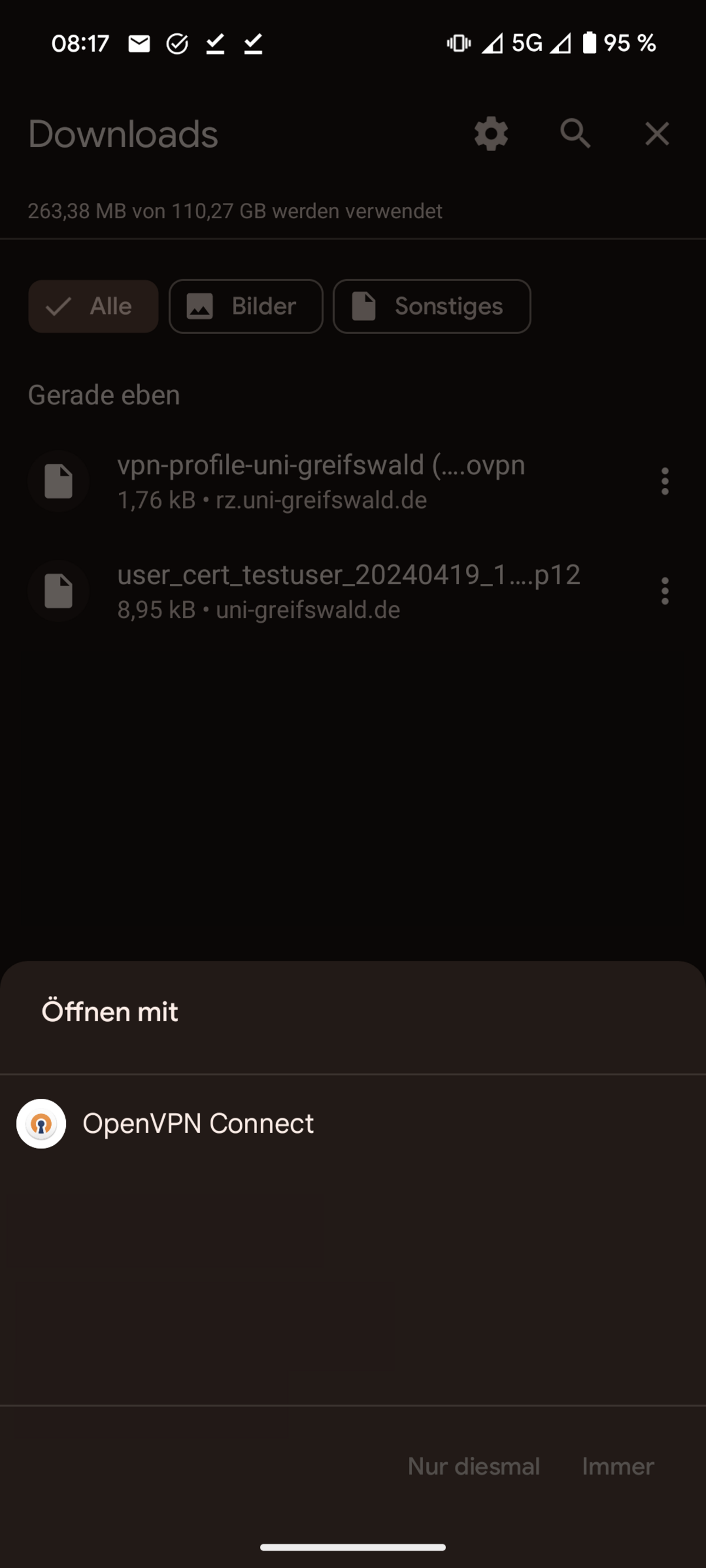
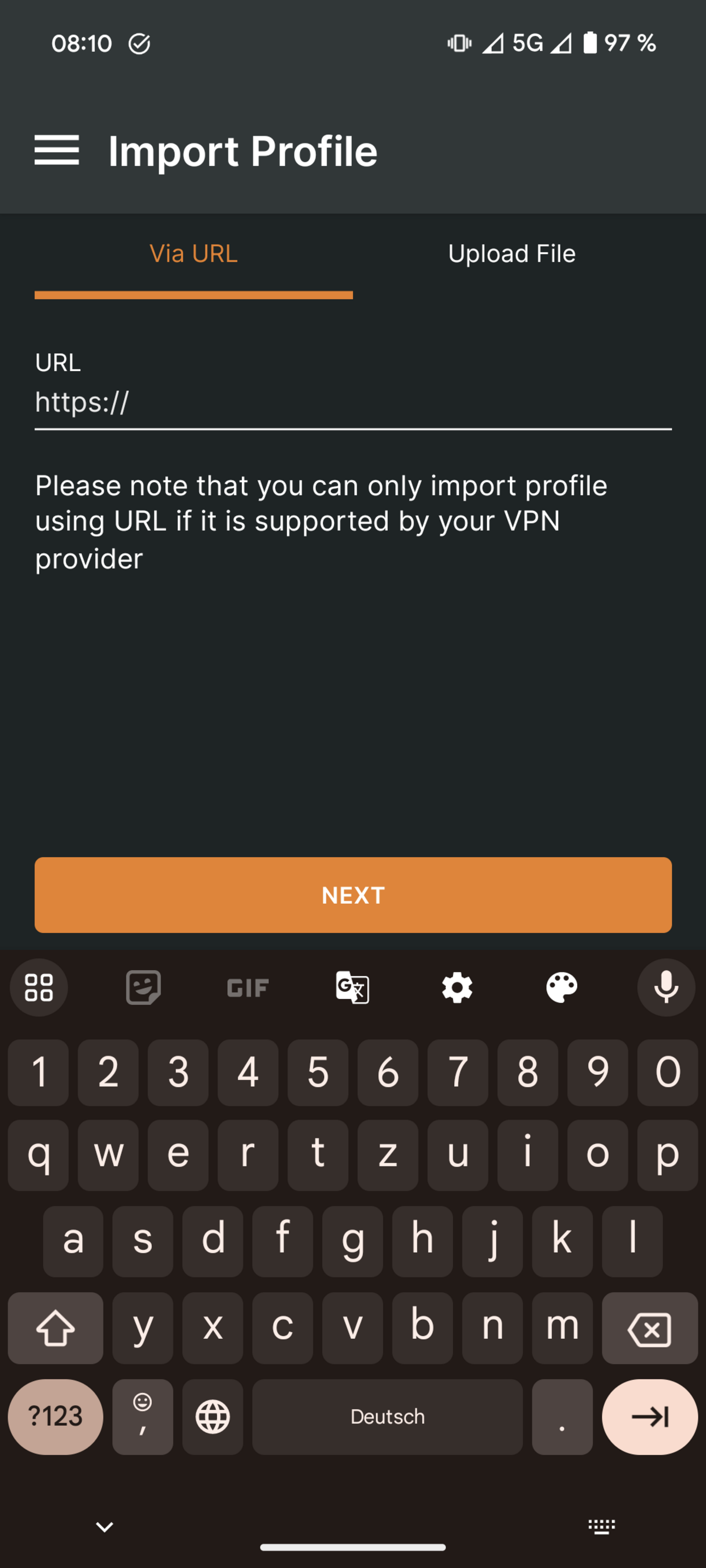
Open the downloads. Click on the VPN profile and open it with the OpenVPN Connect app.
Confirm the import with OK.
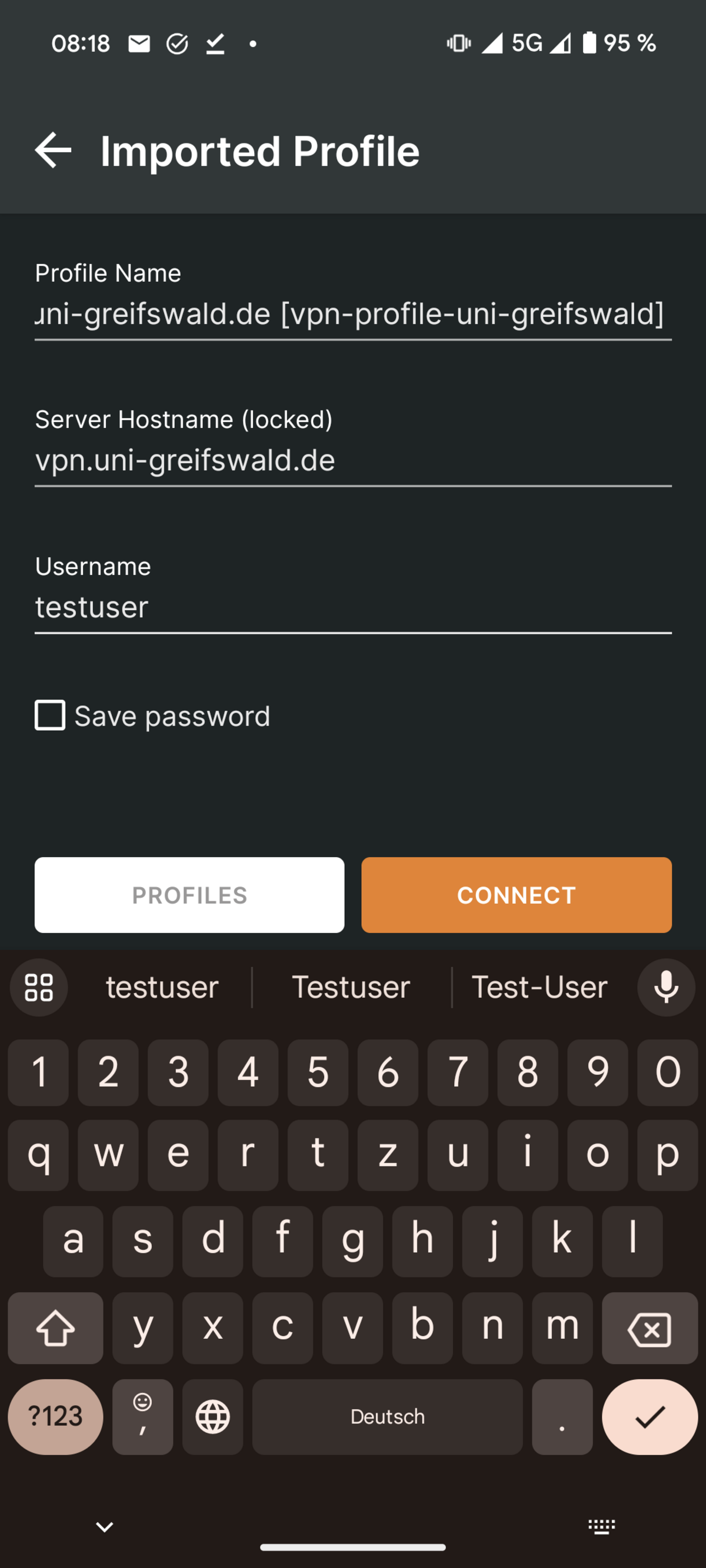
Enter your username (URZ account).
Click on CONNECT and then enter your password for your URZ account.
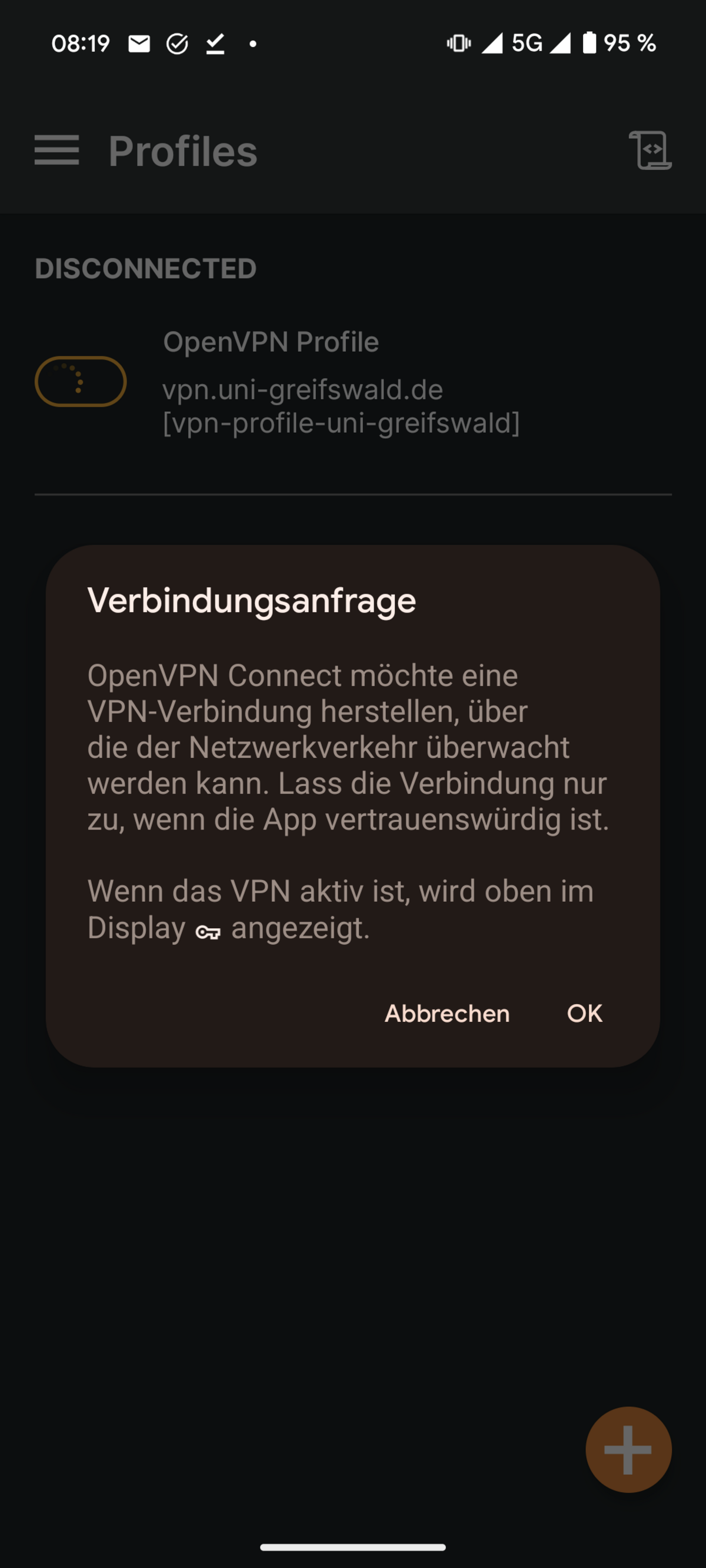
Confirm the addition of the VPN configuration in the system with OK.