
Set up 2FA with FreeOTP
1. Einrichtung der App
Once FreeOTP has been installed, you can create TOTP entries.
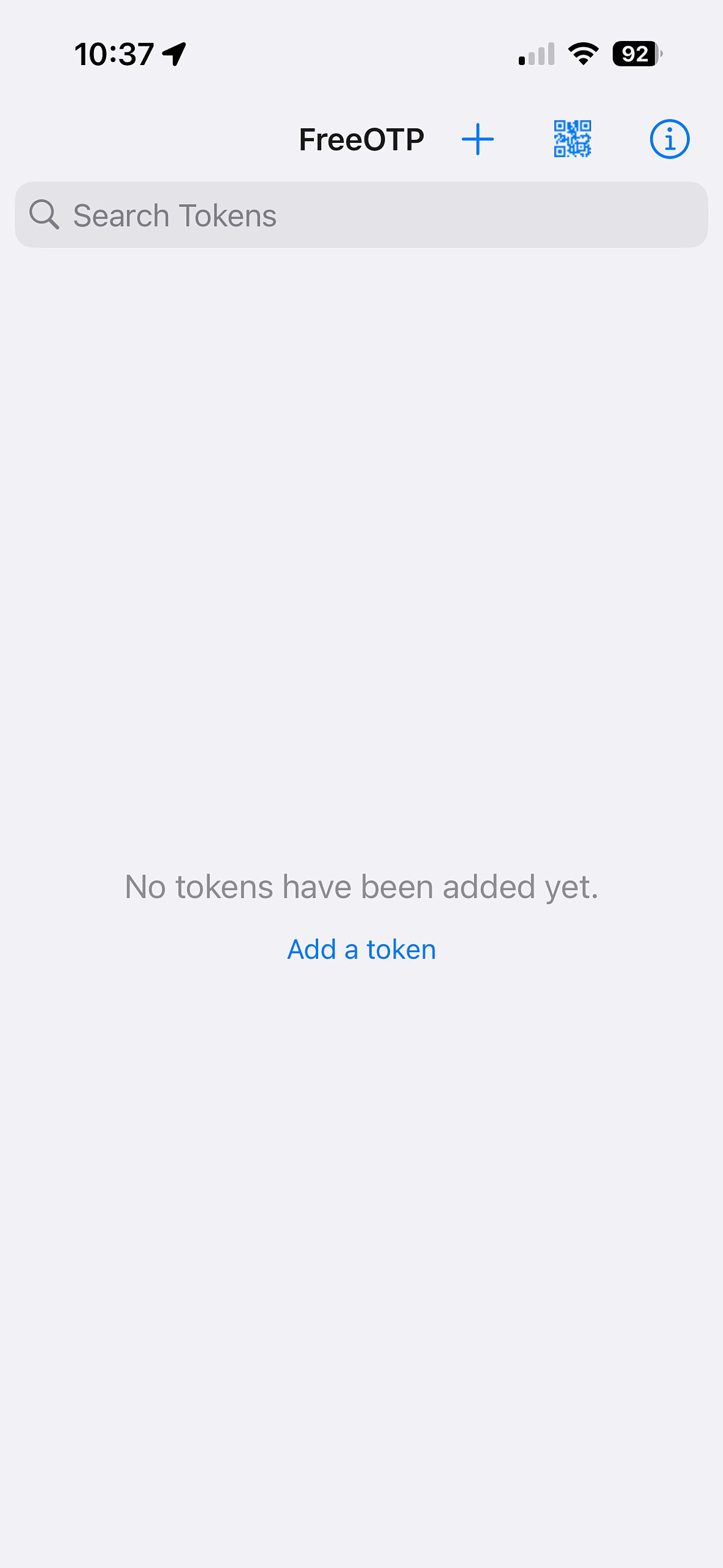
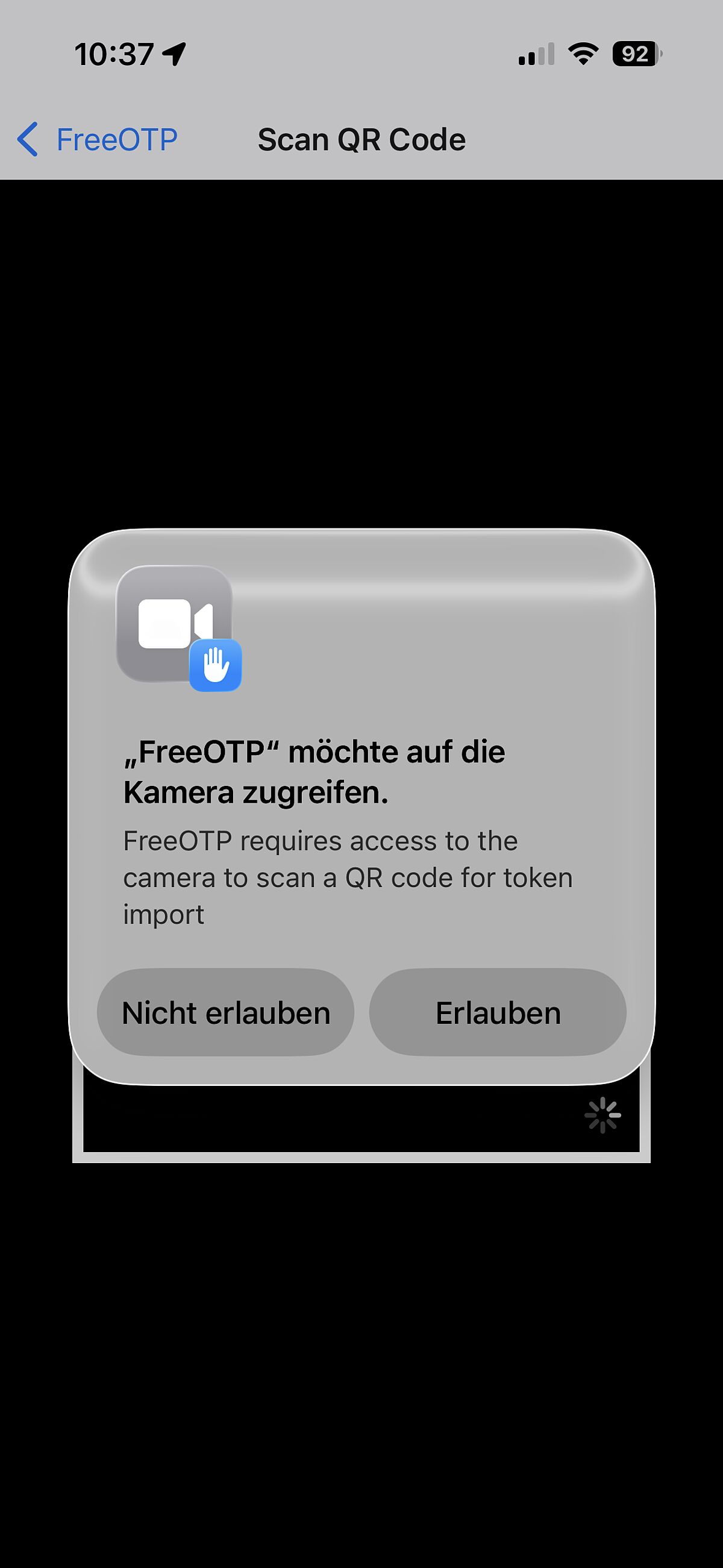
To create entries using a QR code, you must first grant permission to use the camera. Depending on your operating system, this will happen when you launch the app or when you select the QR code.
2. Set up a TOTP entry
Log in to Account Management using your username and password. There you will see the “Set up two-factor authentication” page, which displays a QR code.
You can set up a new entry in FreeOTP either using Option A: Set up via QR code or Option B: Manual setup.
Variante A: Einrichten via QR-Code
Setting up FreeOTP with two devices: smartphone and PC/laptop
- You have logged into Account Management on your PC/laptop and can see the “Set up two-factor authentication” page with the QR code.
- In FreeOTP, tap the plus icon.
- Then tap the QR code icon.
- Use your smartphone to scan the QR code from the Account Management webpage on your PC/laptop.
Setting up FreeOTP with one device (smartphone)
- You have logged into Account Management on your smartphone and can see the “Set up two-factor authentication” webpage with the QR code.
- Simply click on the QR code. The entry will then be automatically generated on your smartphone.
Option B: Manual setup
When setting up 2FA manually for FreeOTP, it is best to use just one device (a smartphone) so that you can easily copy the TOTP secret from the account management page via the clipboard and paste it into FreeOTP.
- You have logged into Account Management and can see the “Set up two-factor authentication” page with the QR code.
- Under Option B: Manual setup, click the “Show details” link.
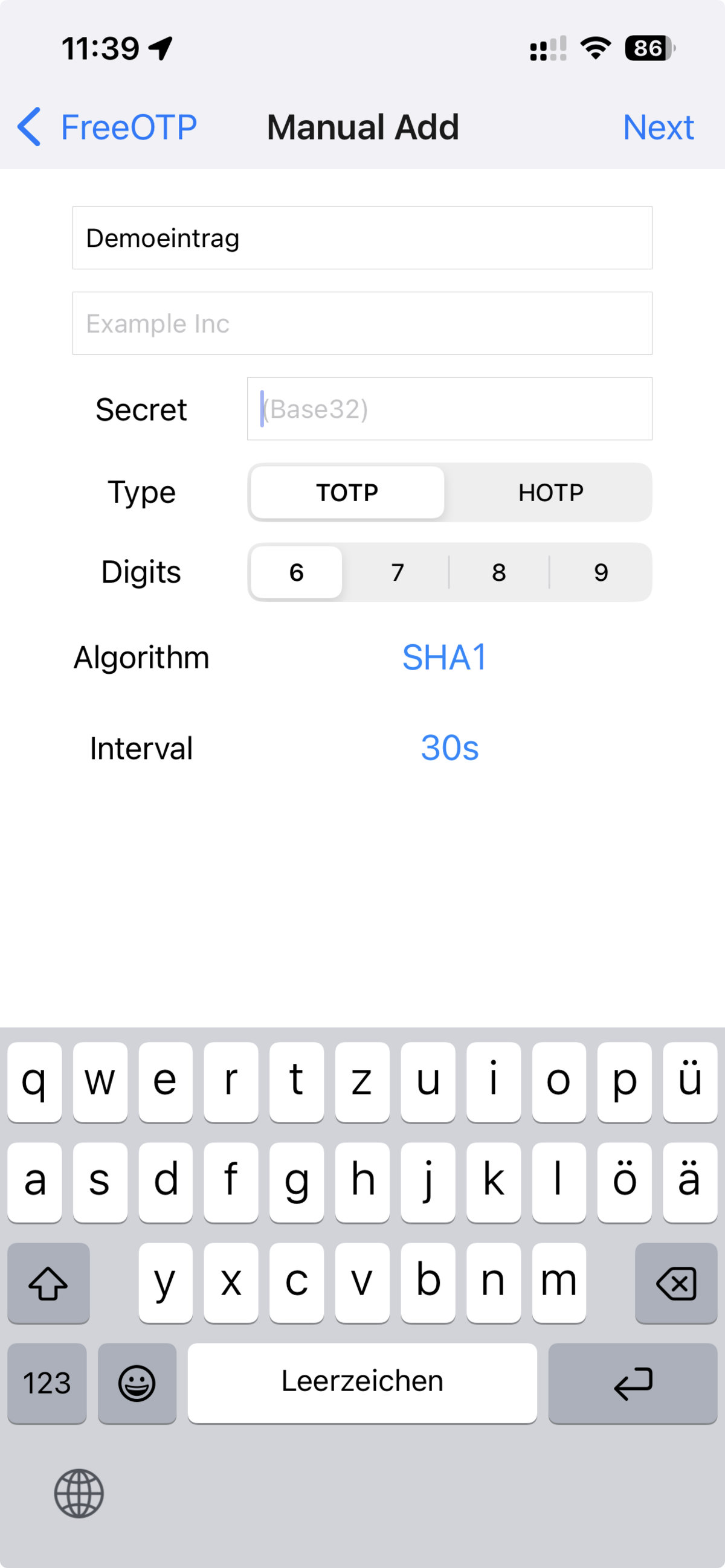
- All parameters must now be set up manually in FreeOTP.
- Click on the plus icon in FreeOTP.
- Then click on the pencil icon.
- Enter a meaningful description, such as “University of Greifswald”, and your username for the entry.
Set the Type to TOTP.
Copy the TOTP secret displayed in the account management section and paste it into FreeOTP.
Set the remaining parameters:- Digits: 6
- Algorithm: SHA1
- Interval: 30
- Click the Add Token button.
On iOS devices, you will be asked to choose a logo for the entry. You are free to choose whichever logo you wish to use.
Attention
To successfully set up your two-factor authentication, you must complete the final step, “Complete 2FA setup”. Otherwise, the TOTP secret will not be linked to your account, the entry in FreeOTP will become invalid, and you will generate invalid TOTP codes.
3. Complete the 2FA setup
- Select your entry in FreeOTP for your account.
- You will see a six-digit code. If you are running out of time, wait a moment until you can generate a new code, which is valid for 30 seconds.
- Enter the generated TOTP code into the ‘TOTP code’ field in the account management section. If you are using two devices, enter the TOTP code manually.
- If you are using only one device, such as a smartphone, tap the share icon, then tap ‘Copy to clipboard’.
- Go back to the account management section, long-press the ‘TOTP code’ field, then tap ‘Paste’.
- Tap the ‘Confirm’ button.
This completes the setup of two-factor authentication for your account. If 2FA is required to log in to various University of Greifswald online services, FreeOTP is now configured with your entry and ready to generate further TOTP codes.