
Primary device: PC/laptop – Secondary device: smartphone
- Install FreeOTP on your smartphone.
- Go to the account management website.
- Log in with your username and password.
- Open KeePassXC on your primary device.
- Generate a TOTP code using KeePassXC. If necessary, follow these instructions.
- Copy or transfer the TOTP code into the account management section and confirm your entry.
- Go to My Account / Two-factor authentication.
- You will now see two options for setting up the TOTP secret on your smartphone.
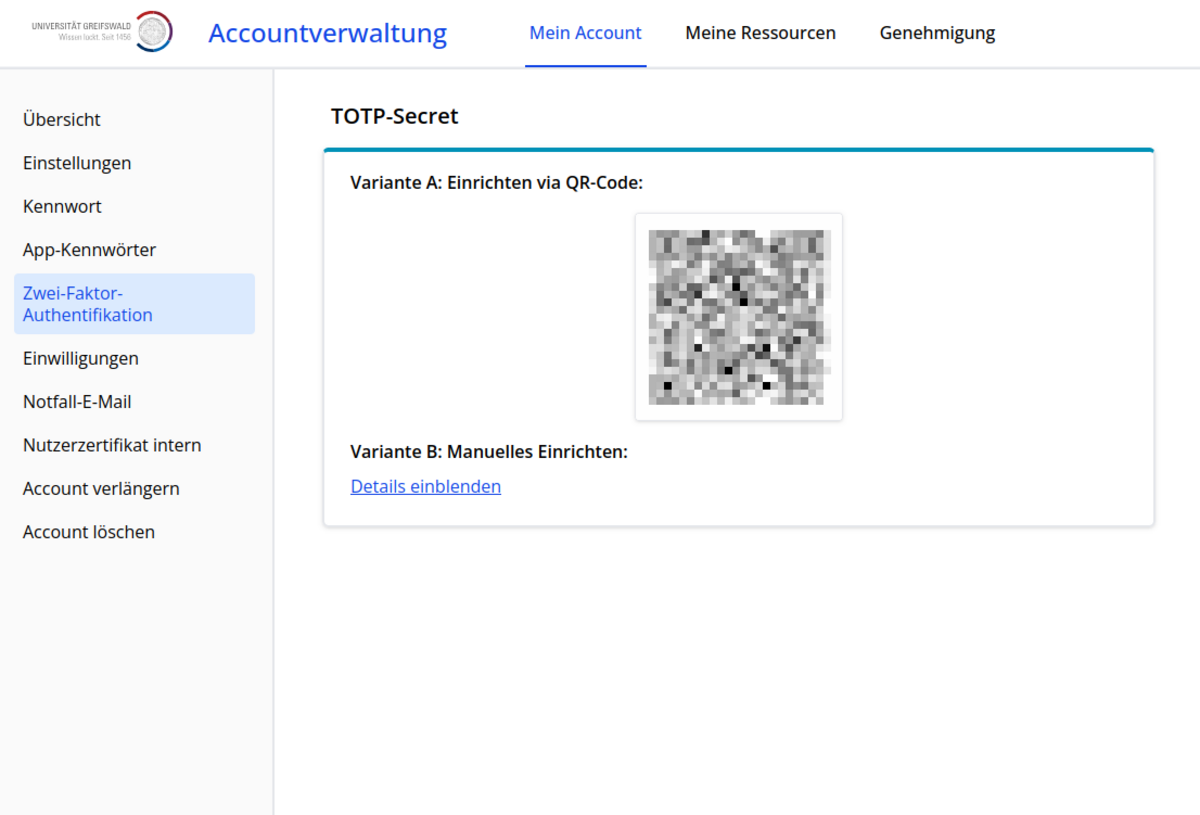
Option A: Set up using a QR code
Setting up FreeOTP with two devices: a smartphone and a PC/laptop
It is assumed that you have logged into the Account Management portal on your PC/laptop using a web browser.
- Launch FreeOTP on your smartphone.
- Tap the plus icon in FreeOTP.
- Then tap the QR code icon.
- Use your smartphone to scan the QR code from the Account Management webpage on your PC/laptop. The entry will then be automatically generated in your FreeOTP authenticator app.
Setting up FreeOTP with one device (smartphone)
It is assumed that you have logged into Account Management portal on your smartphone using a web browser.
- Launch FreeOTP on your smartphone.
- Switch back to your web browser so that you can see the Account Management page displaying the QR code.
- Simply click on the QR code. The entry will then be automatically generated in your FreeOTP authenticator app.
Option B: Manual setup
To set up 2FA manually for FreeOTP, it’s best to use only your smartphone, so that you can easily copy the TOTP secret from the account management section via the clipboard and paste it into FreeOTP.
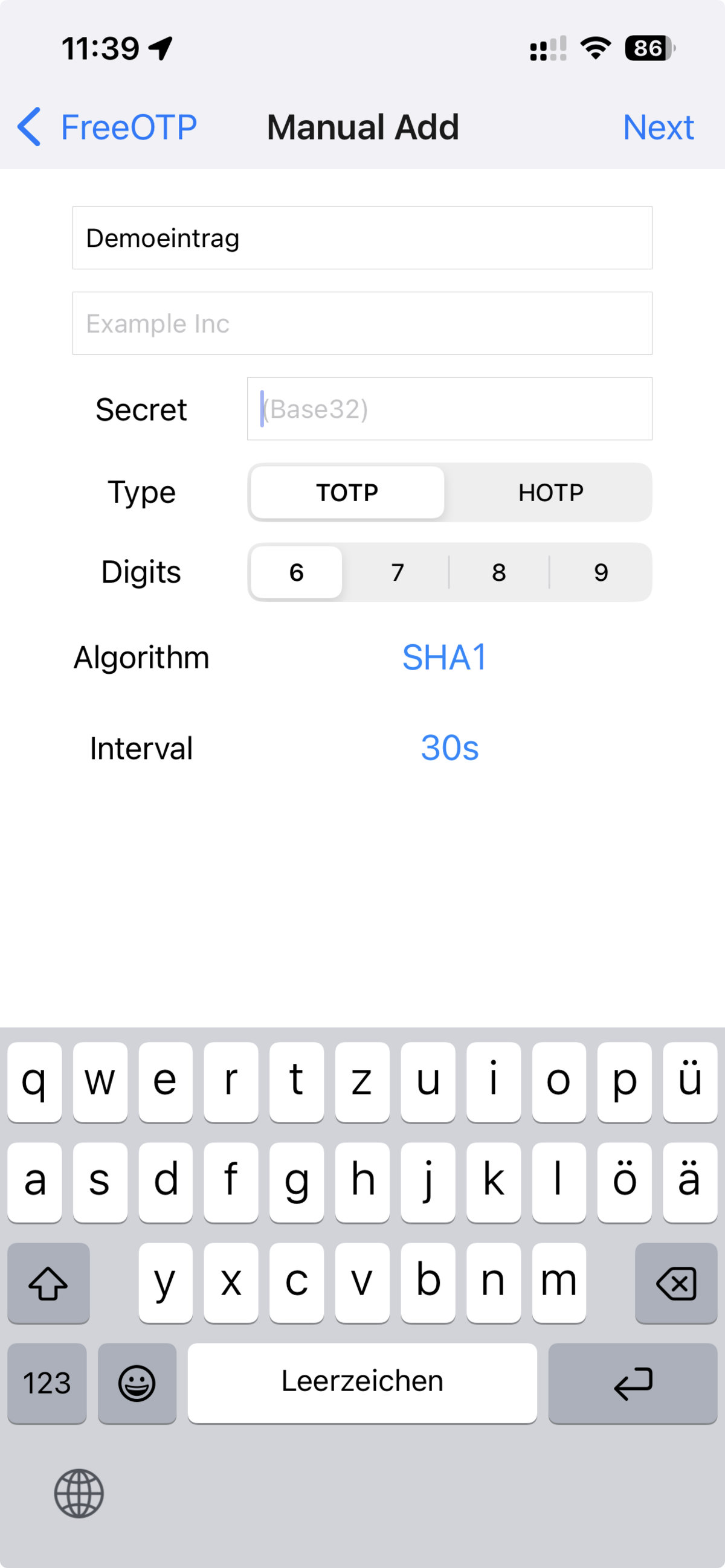
It is assumed that you have logged into the Account Management website on your smartphone using a web browser.
- In the Account Management, under Option B: Manual Setup, select the ‘Show details’ link.
- All parameters must now be set up manually in FreeOTP.
- Launch FreeOTP on your smartphone.
- Tap the plus icon in FreeOTP.
- Then tap the pencil icon.
- Enter meaningful descriptions, such as “University of Greifswald”, and your username for the entry.
Set the type to TOTP.
Copy the TOTP secret displayed in the account management section and paste it into FreeOTP.
Configure the other parameters:- Digits: 6
- Algorithm: SHA1
- Interval: 30
- Tap the ‘Add token’ button.
On iOS devices, you will be asked to choose a logo for the entry. You are free to choose whichever logo you wish to use.