
Signing & Encryption with MS Outlook
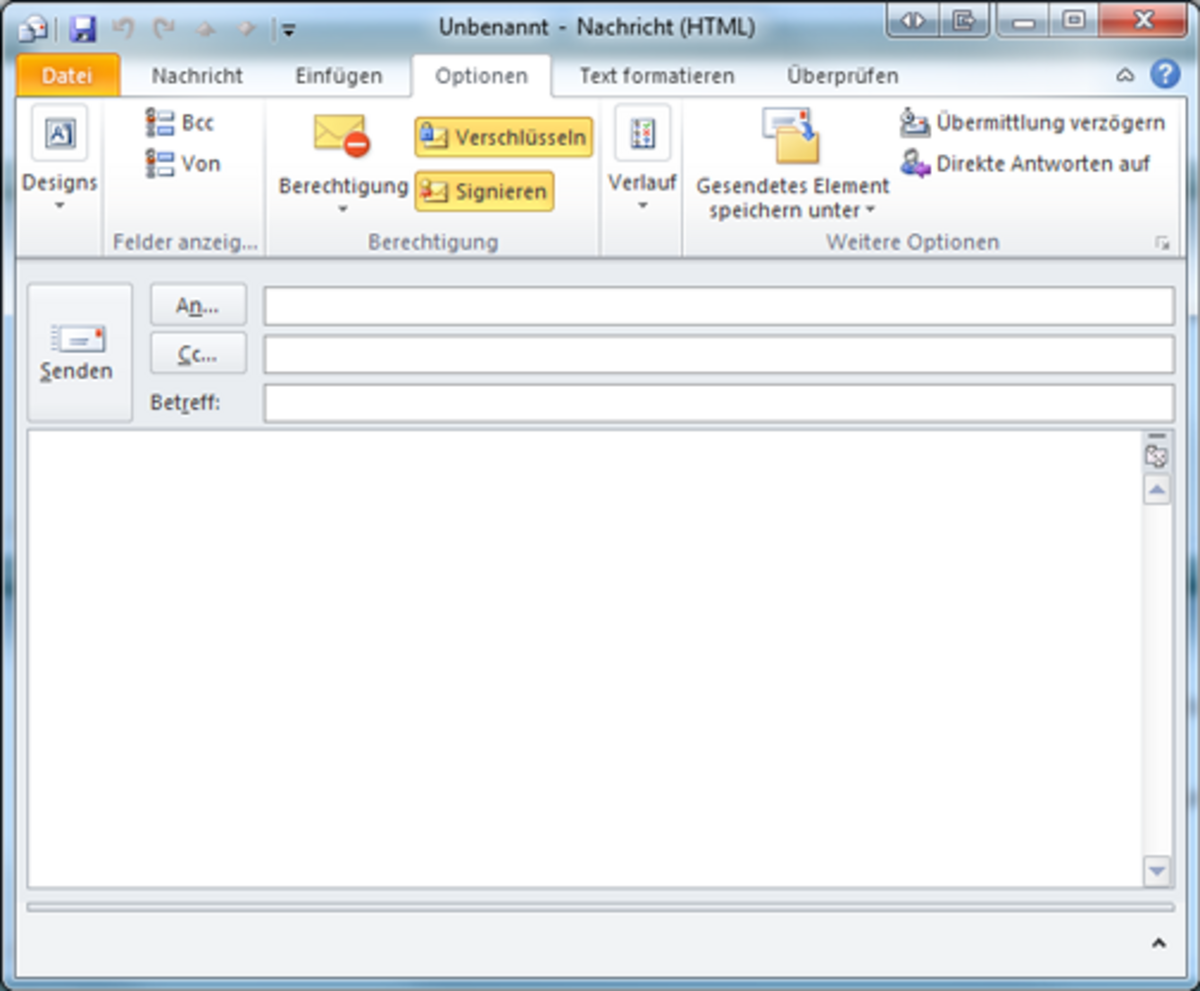
Here you can find out how to sign emails in a way that prevents forgery and encrypt them using state-of-the-art technology that cannot be cracked.
To sign an email – that is, to add a digital signature – you will need a private key and a certificate from the DFN-PKI. Once you have imported these into Outlook, you should ensure that automatic signing is enabled.
When composing a new email, you can now use the Sign or Encrypt buttons to enable or disable the digital signature, or to encrypt the email.
Important note
Emails are always encrypted using the public key from the recipient’s personal certificate. So, for example, if an encrypted email is to be sent to recipient X, you will need the public key from recipient X’s personal certificate.
Request fo public key
You can obtain this public key, for example, by requesting a signed email from the intended recipient X. After opening this email, add the address of recipient X (and thus automatically the public key of recipient X) to your Outlook contacts (right-click on the sender of the opened email; select ‘Add to Outlook Contacts’; then save and close). To encrypt the message, you must then select recipient X from your Outlook contacts.
If recipient X is already in your Outlook contacts, you must delete them first so that the new contact, with the current public key, can be saved in your Outlook contacts.