Setup email on iOS (iPhone, iPad)
There are two different ways to set up a university email account on your iOS device. You can set it up manually or use a predefined configuration profile. The latter saves you from having to enter the connection details for incoming and outgoing emails.
Manual setup
To set up a university email account on your iOS device, follow these steps:
- Open the Accounts & Passwords section in Settings and select Add Account.
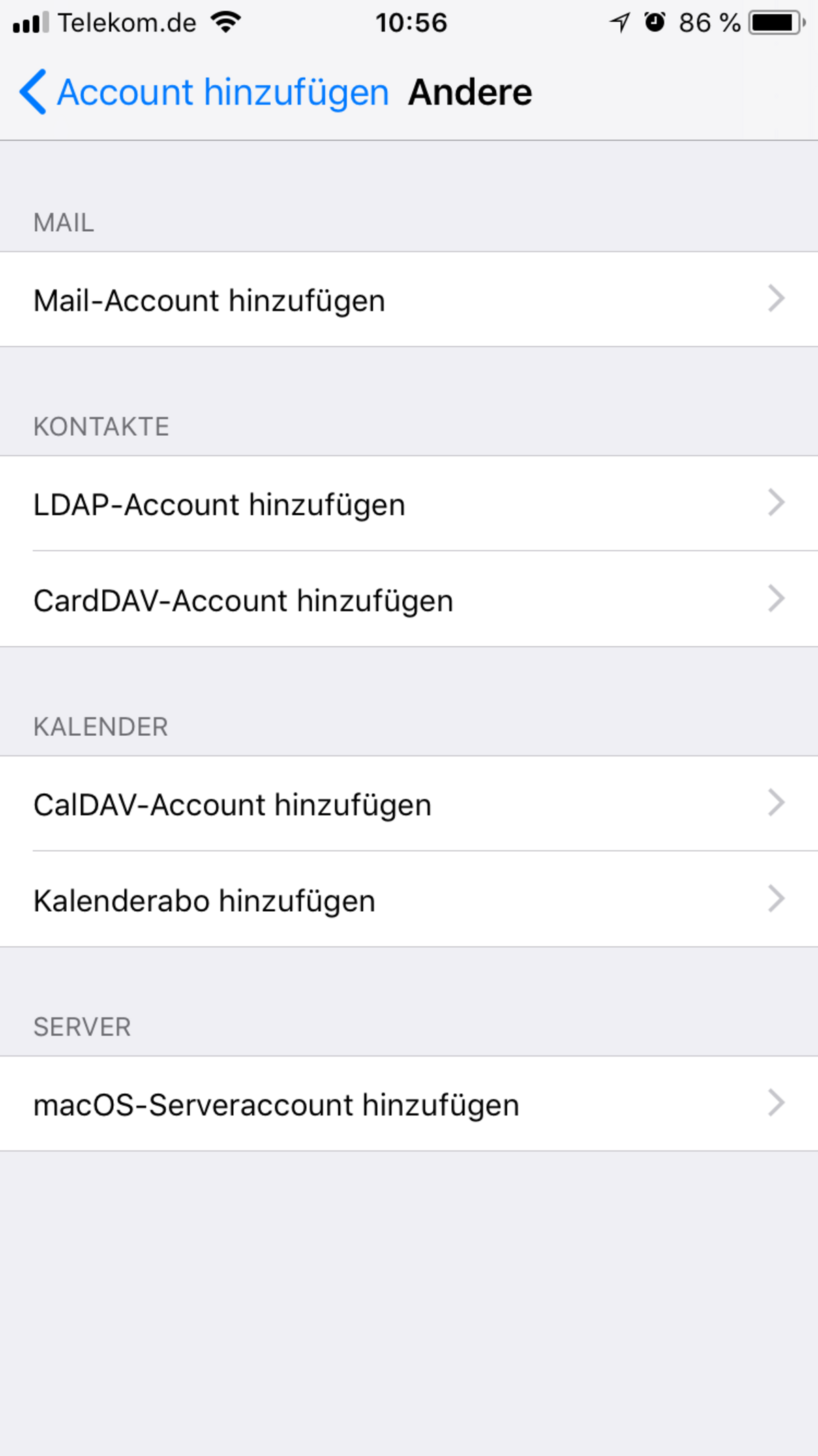
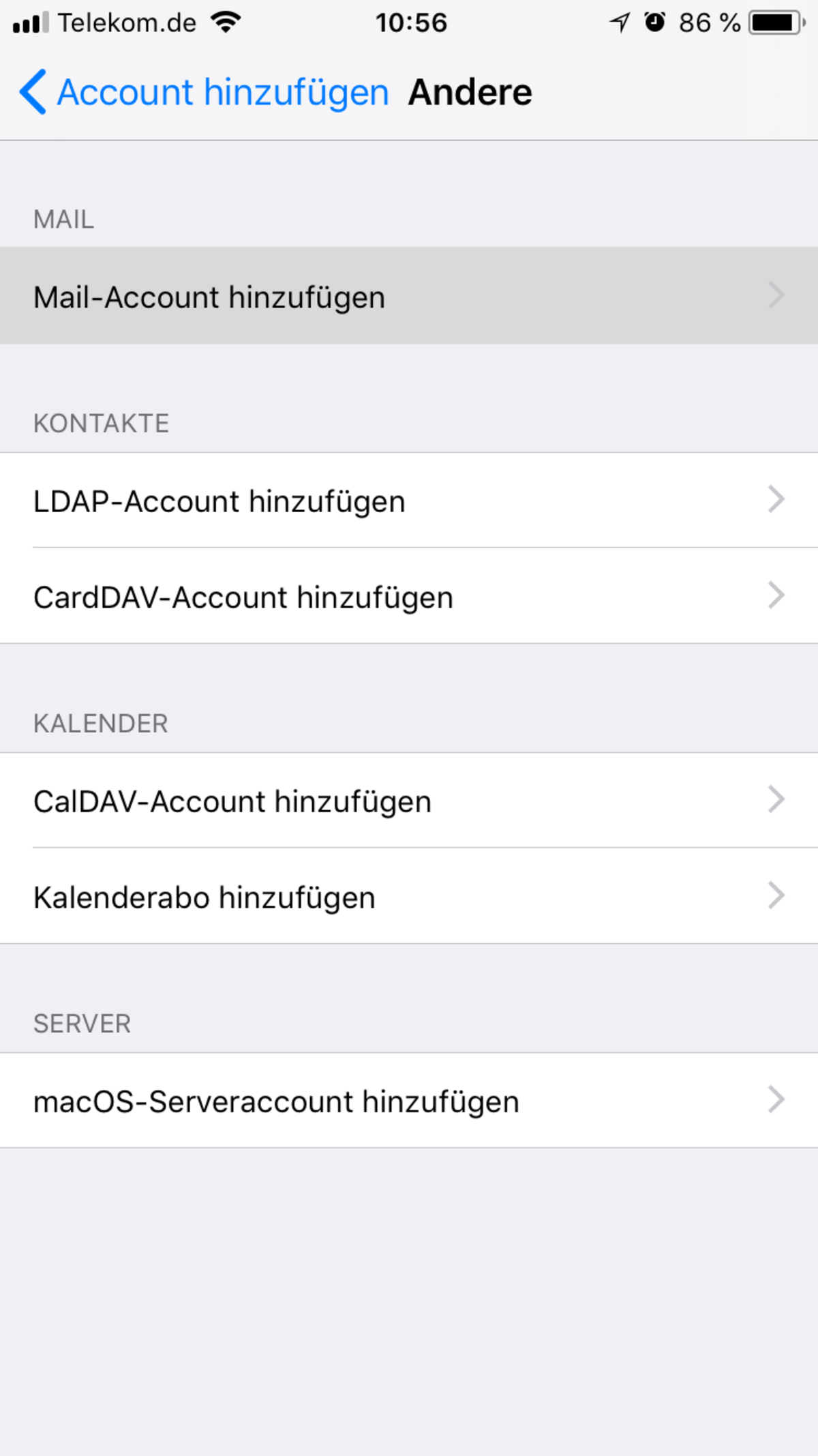
- From the list of available account types, select Other (the last option in the list).
- Then select Add Mail Account from the drop-down list of account types.
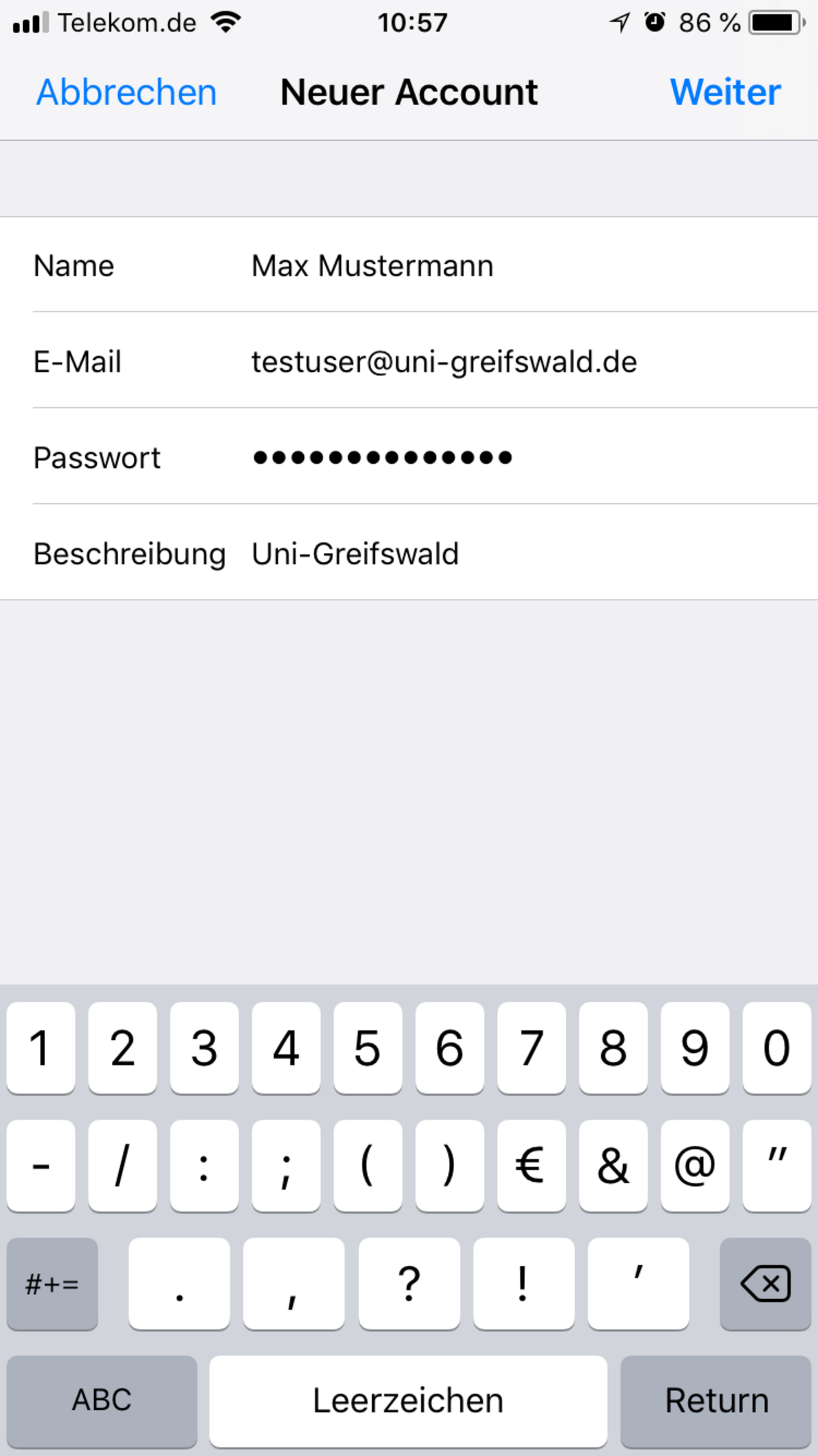
- In the form for the new account, enter your email address and the password for your central user account.
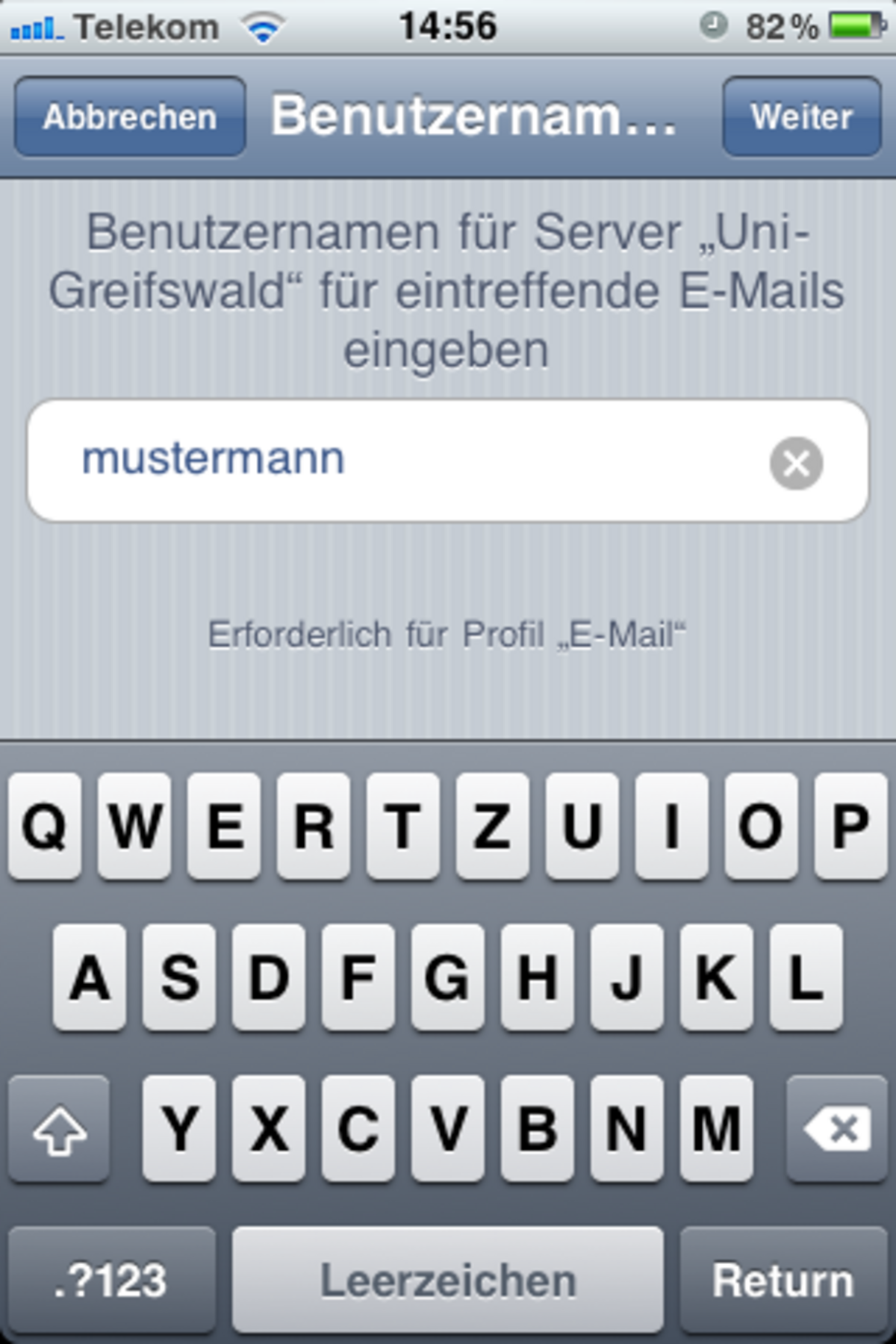
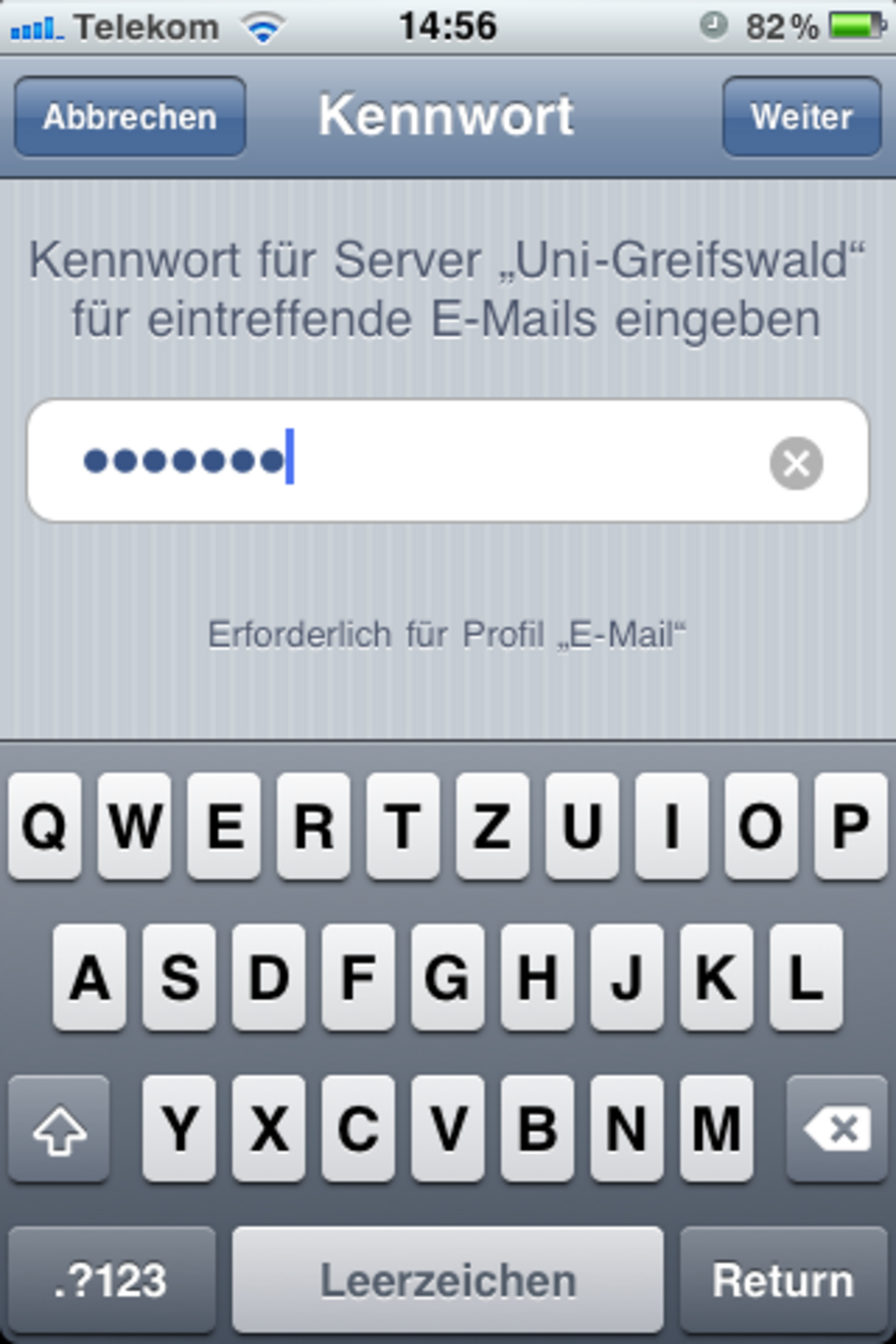
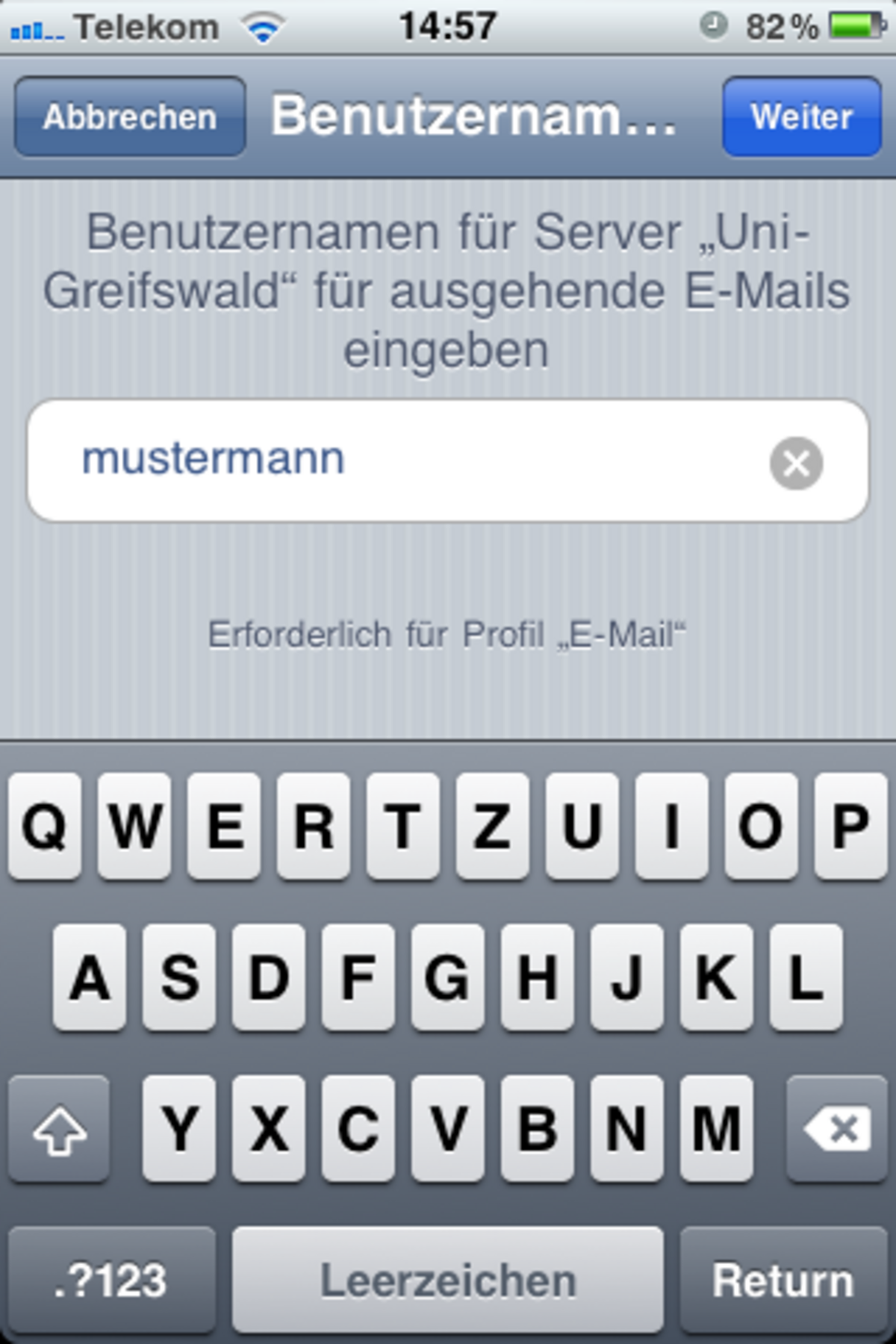
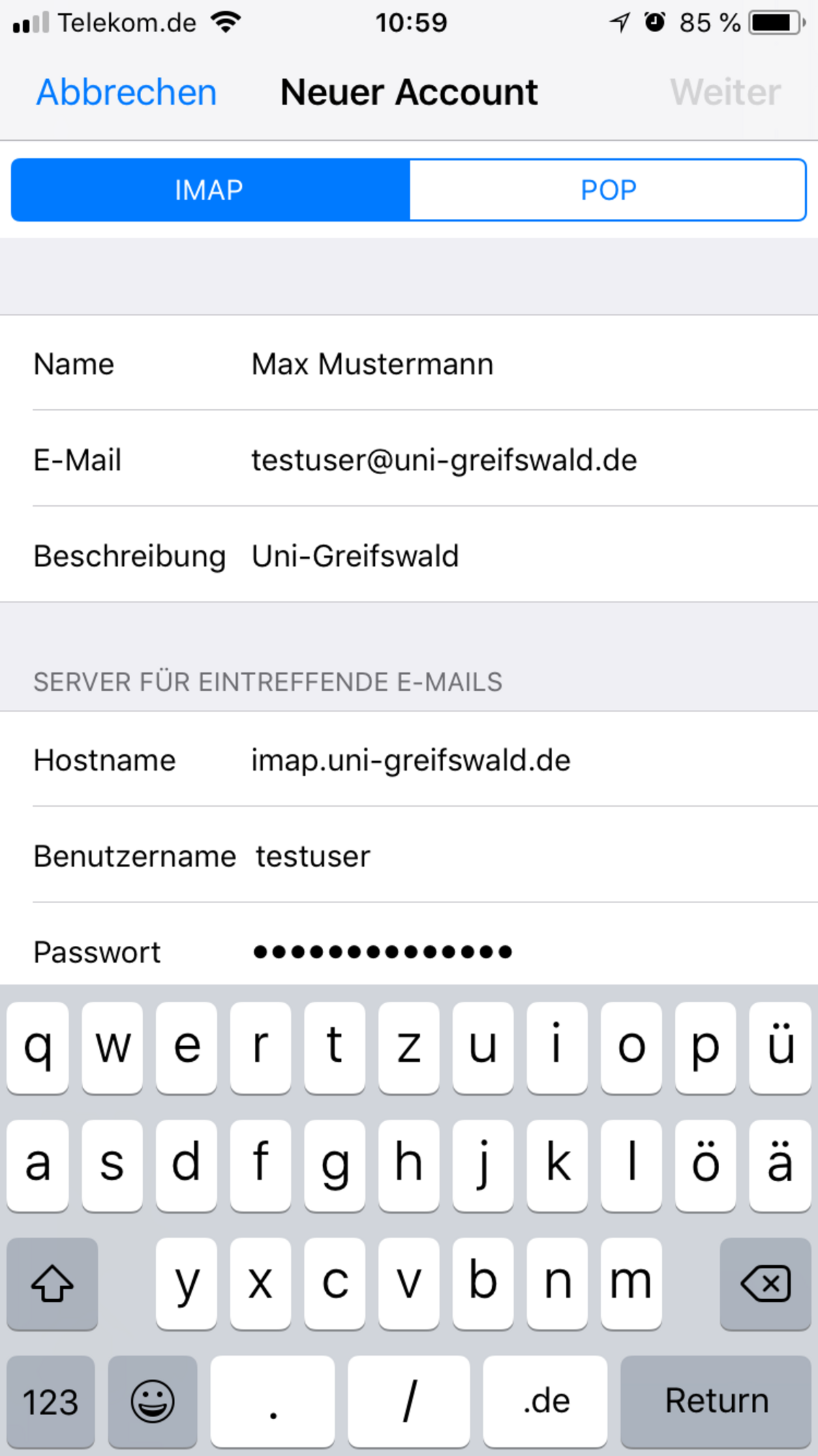
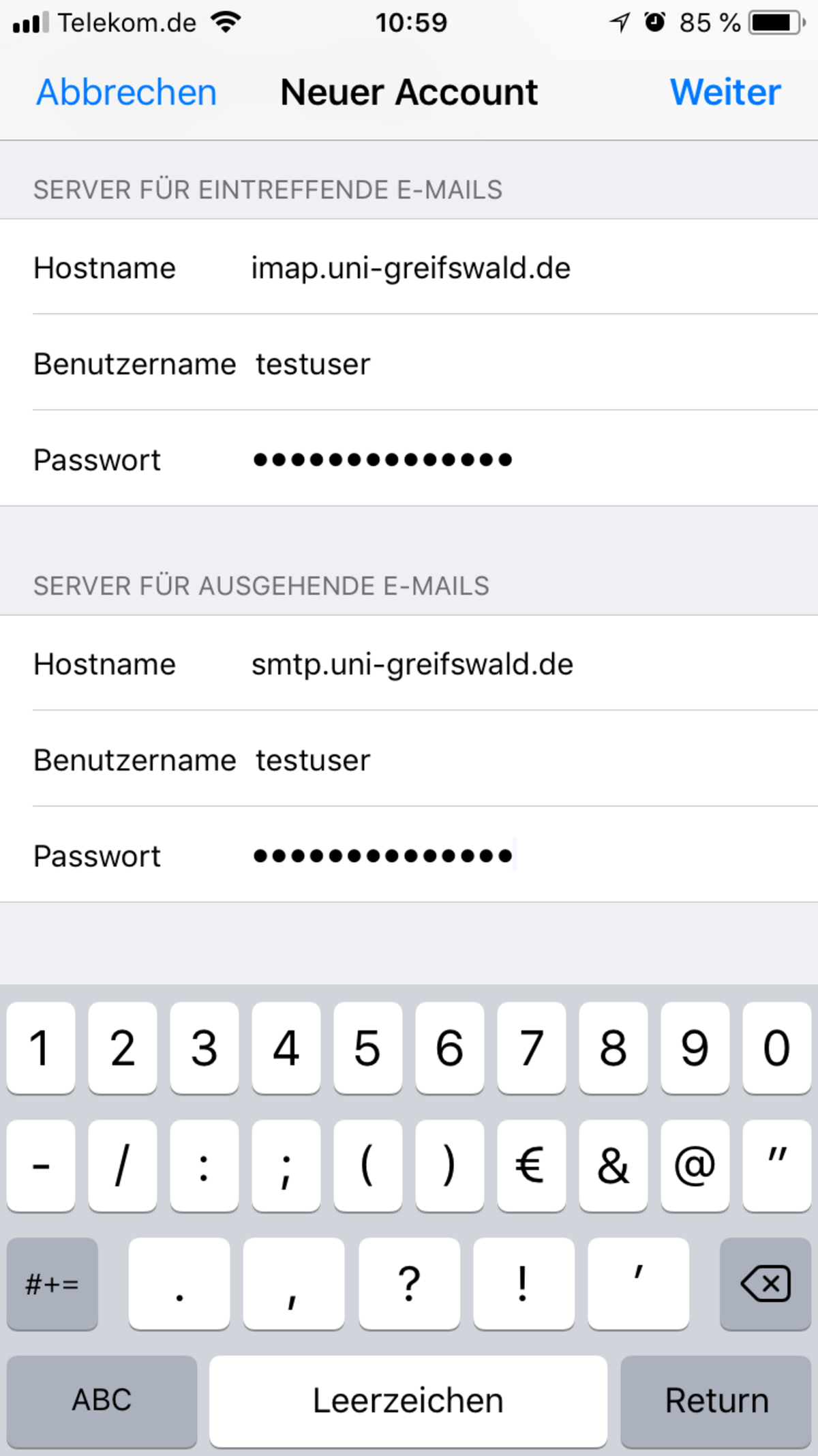
- In the next window, you must configure the settings for incoming and outgoing emails. Use your URZ username and an app password.
- Once your settings have been successfully verified, the setup will be complete and you will have access to your university email account in the Mail app.

Configuration profile
To set up your university email, you can use the email profile for iOS provided by the University IT Centre.
To use the email profile, you must download it to your iOS device (if necessary, select ‘Save link as…’ / ‘Save destination as…’).
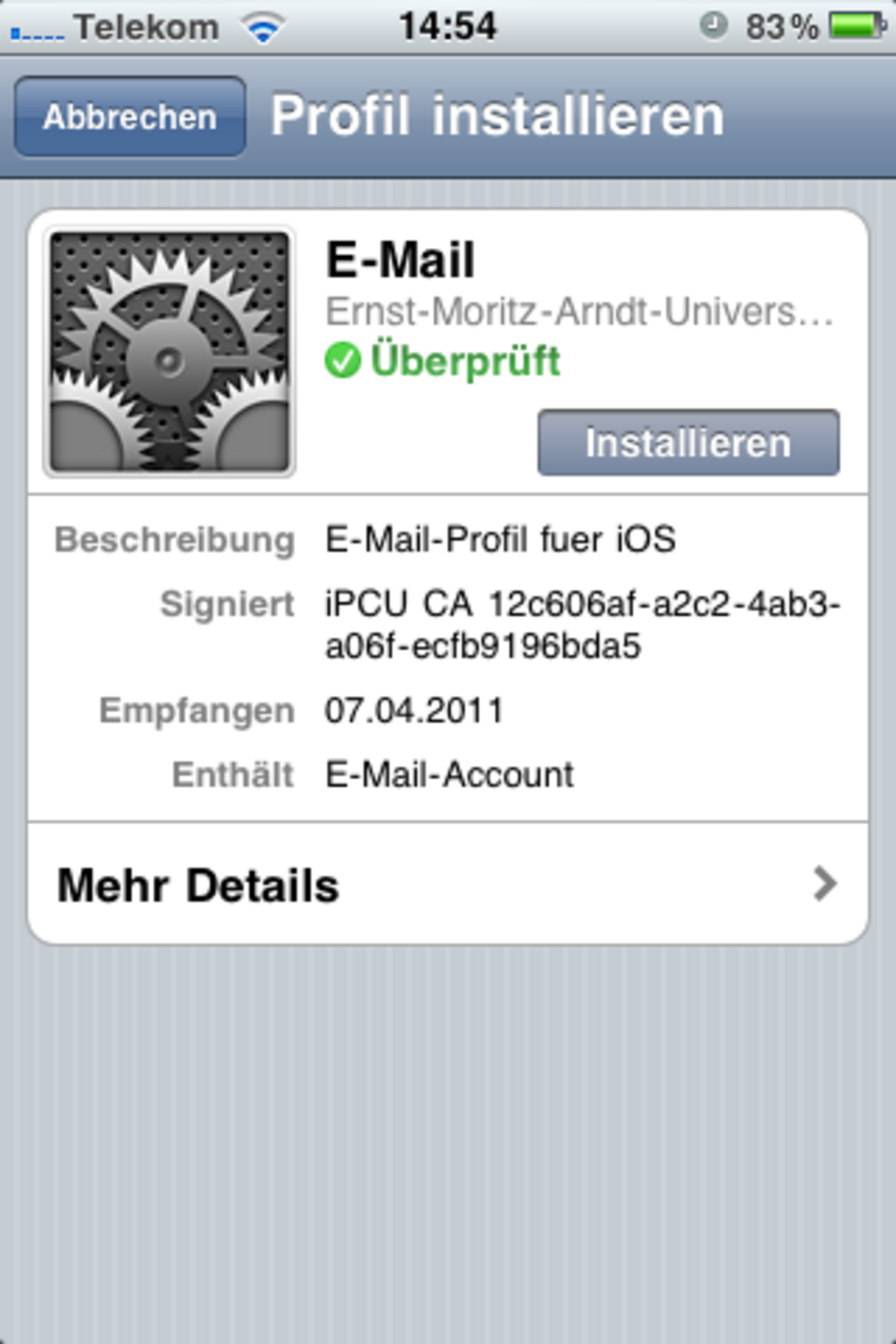
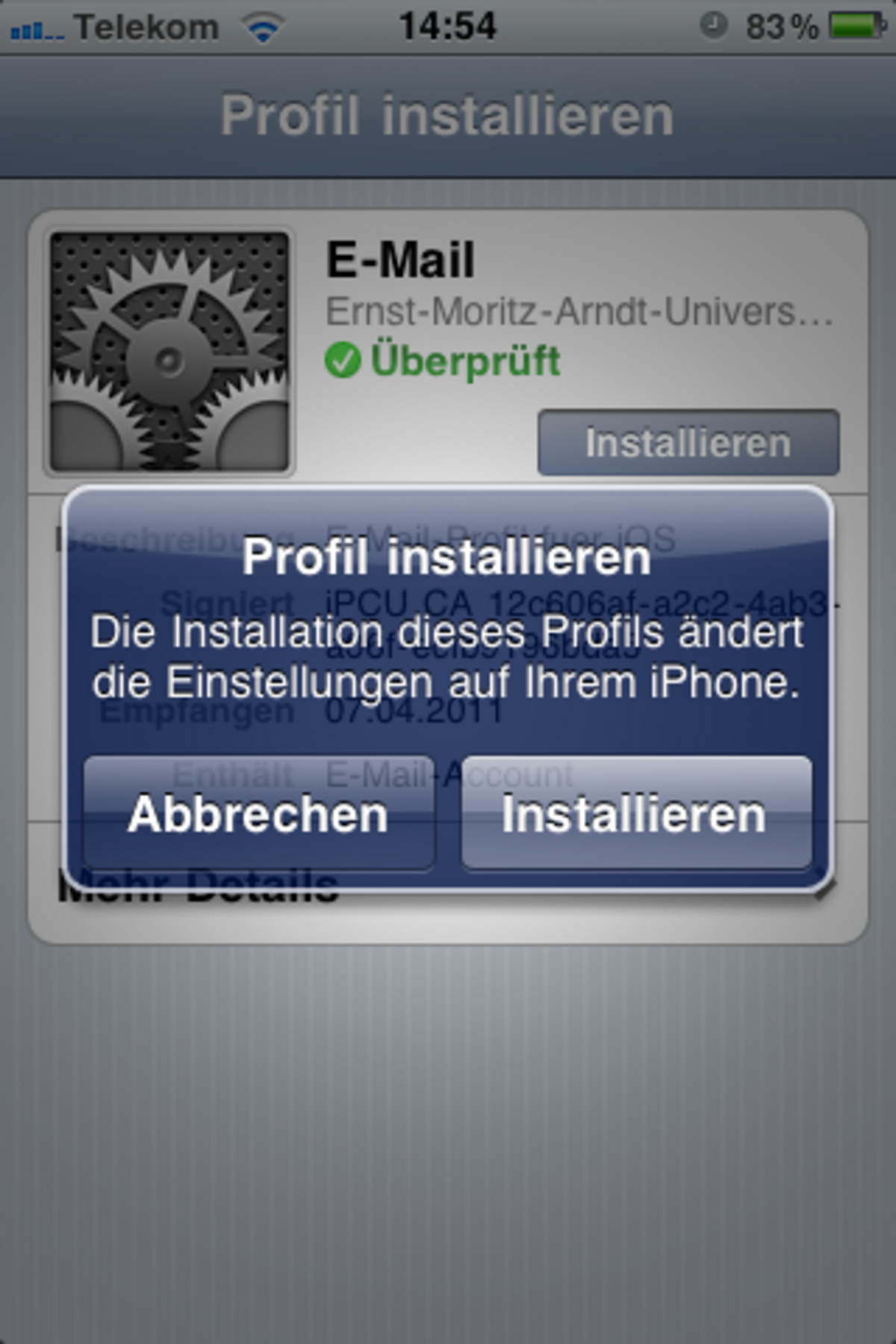
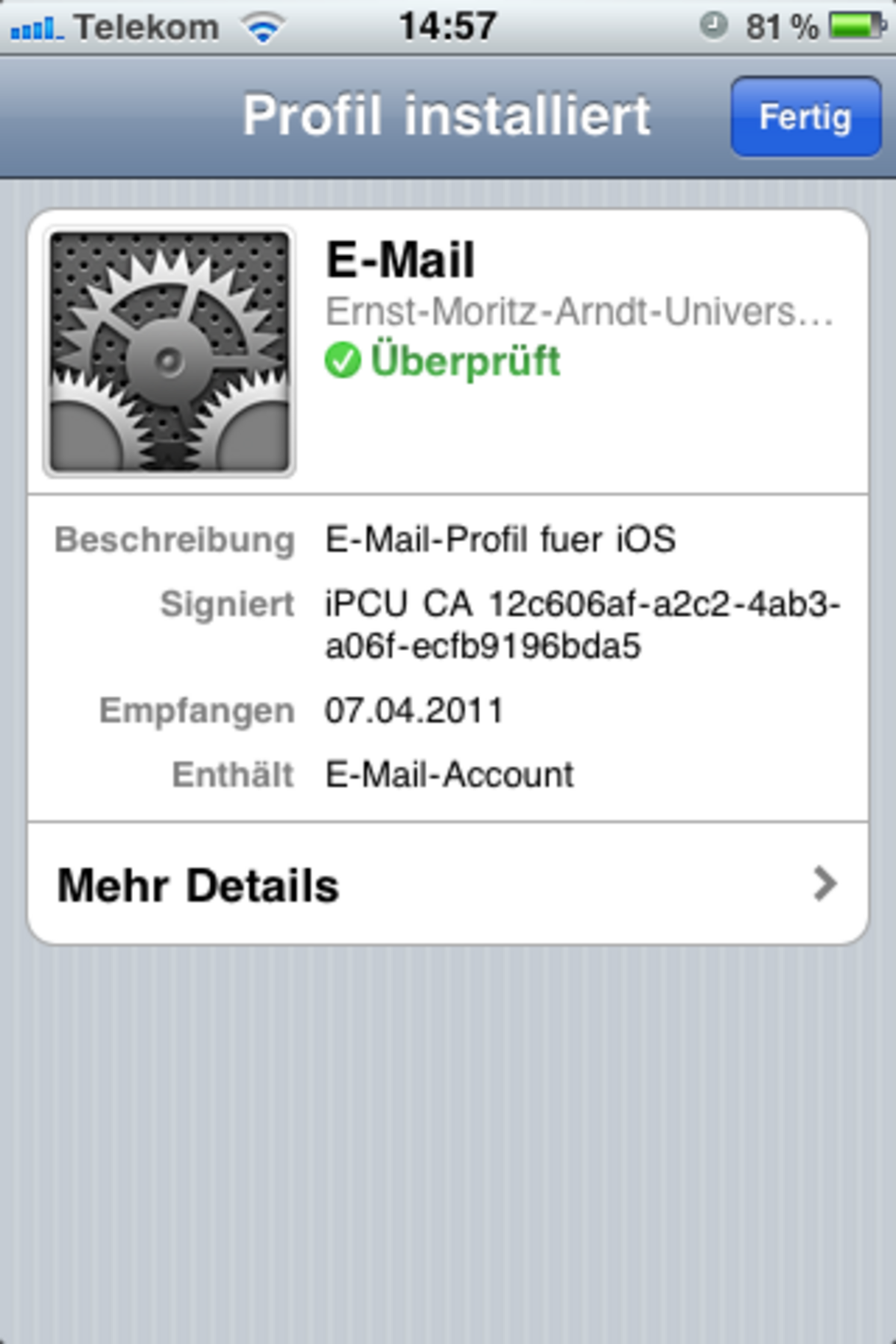
Once the profile has been downloaded, it must be installed. To do this, tap the Install button.
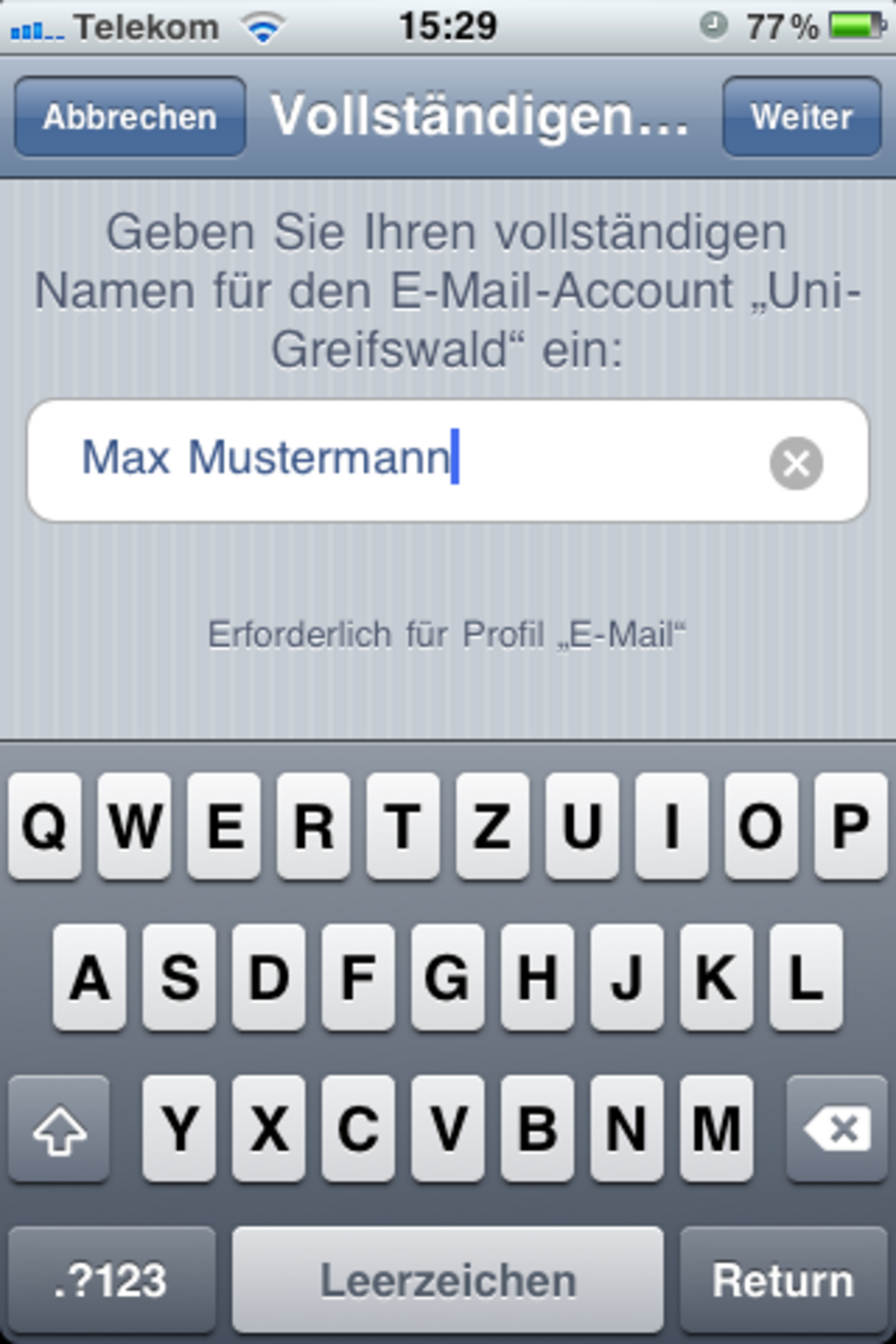
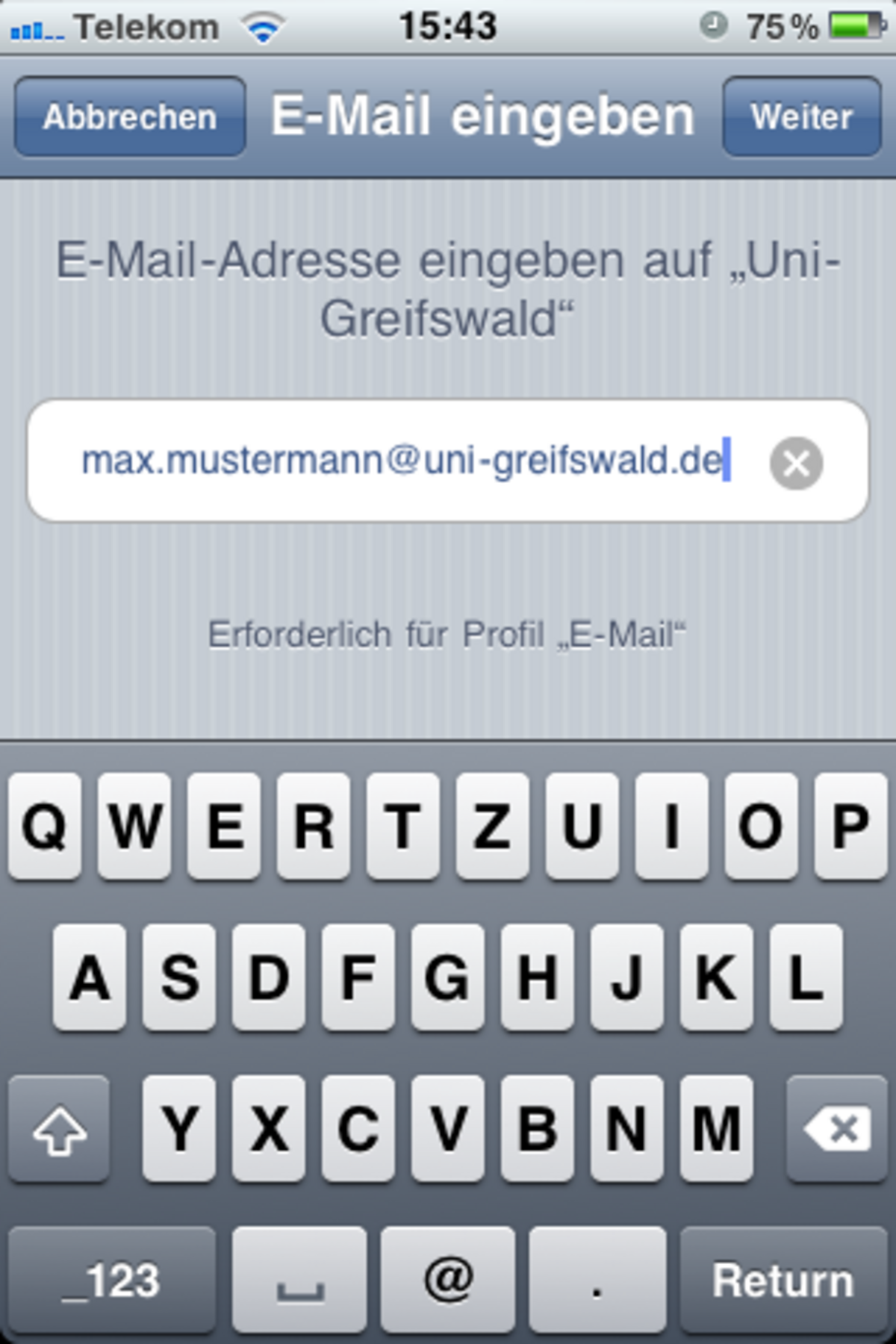
Follow the on-screen prompts to enter your full name, your email address, your URZ username and an app password.
Note: If you wish to synchronise your iPhone with the groupware’s calendar function, you will need to manually configure the Exchange account type.