Setup email for macOS
When setting up an email account, a distinction must be made between two scenarios:
The two scenarios differ specifically in the sequence of clicks.
Important note
The Mail app only supports TLSv1.2 connection encryption from macOS 10.12 (Sierra) onwards. If you are using an earlier version of macOS, you will not be able to retrieve messages from the email server using the Mail app.
If you do not wish to update your operating system, you will need to use other email clients.
Case 1: If no email account has been set up yet
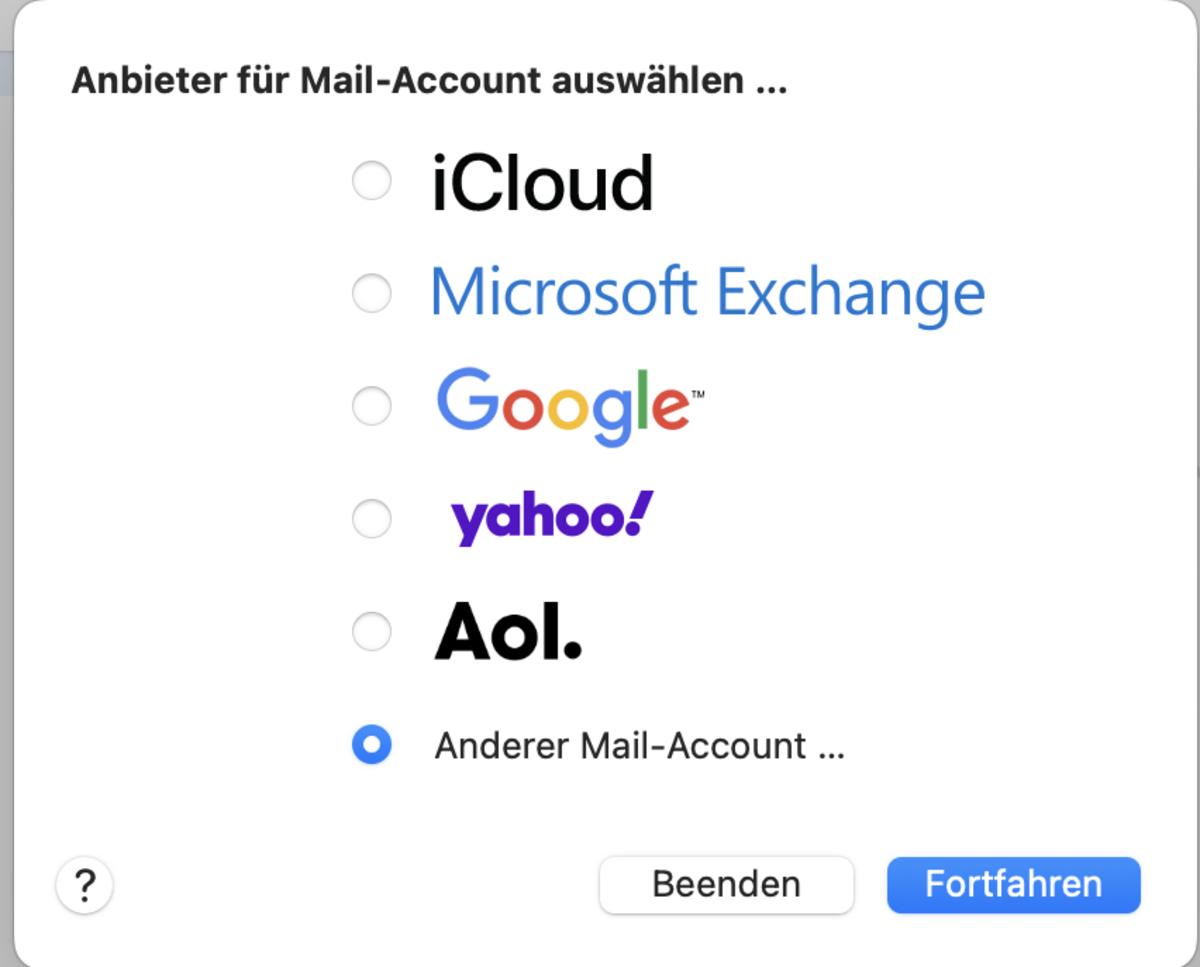
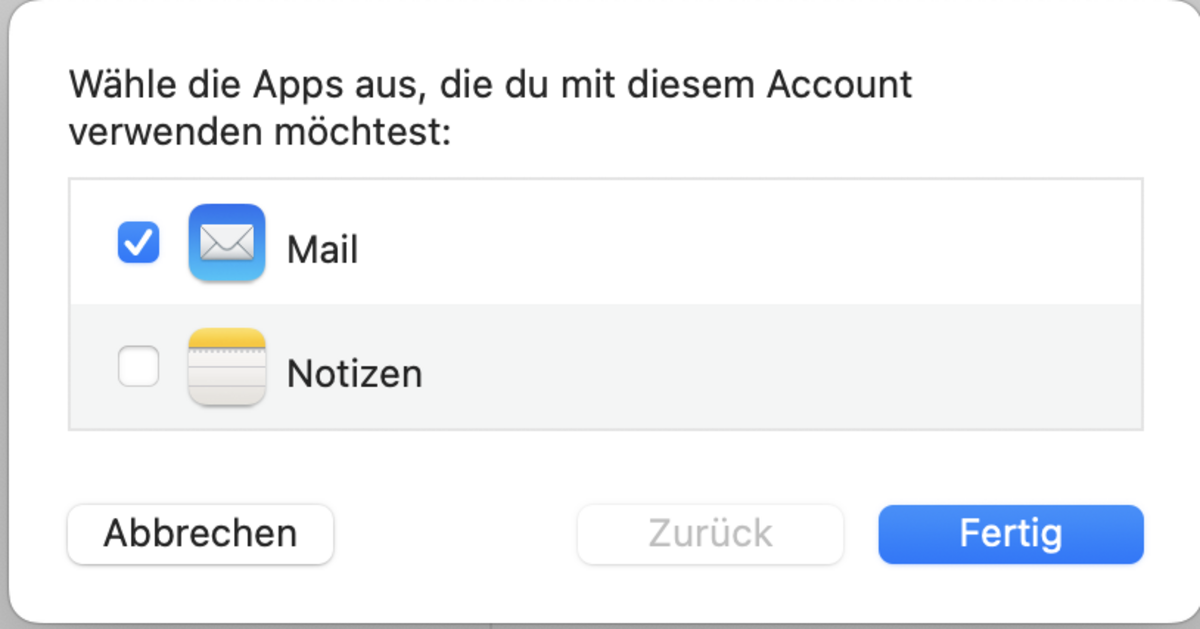
To set up an email account in Apple Mail, first launch the Mail programme from the Dock at the bottom of the screen or via the Applications folder in the Finder. If no account has yet been set up, a setup assistant will appear immediately after the software launches, designed to help you set up an email account. Entering the details in the assistant is the same as setting up an account.
The setup assistant automatically configures the outgoing mail server to use port 25. We strongly recommend changing this to port 587. You can find out how to change the SMTP server settings below.
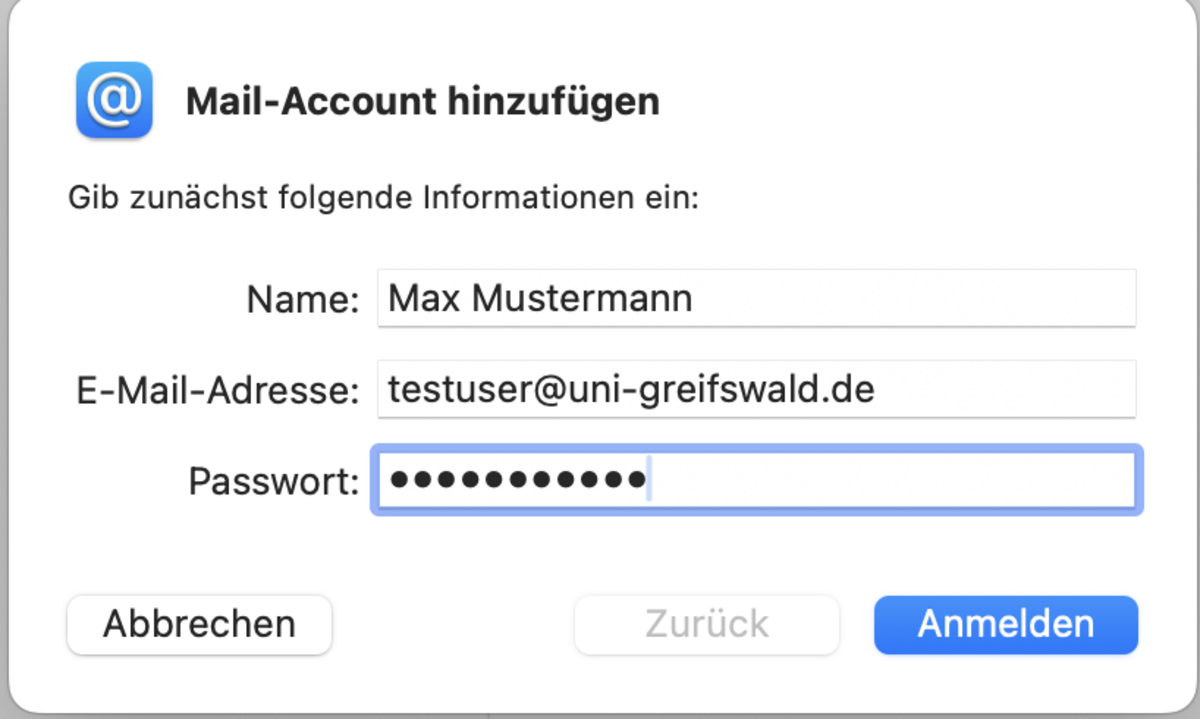
Please use your URZ username as your username and an app password as your password.
Case 2: If you already have an email account
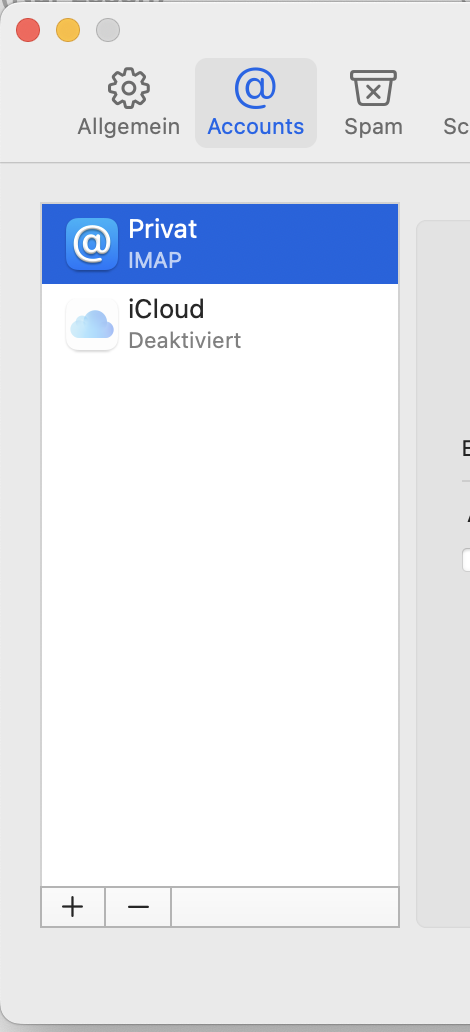
Open the account settings via Mail -> Preferences -> Accounts.
If the Setup Assistant does not appear, open Mail’s preferences from the menu bar and click on the Accounts section at the top of the dialogue box that appears.
To set up a new email address, click the [+] button in the bottom left-hand corner. From this point onwards, the dialogue windows will be the same as those in the setup wizard from Case 1.
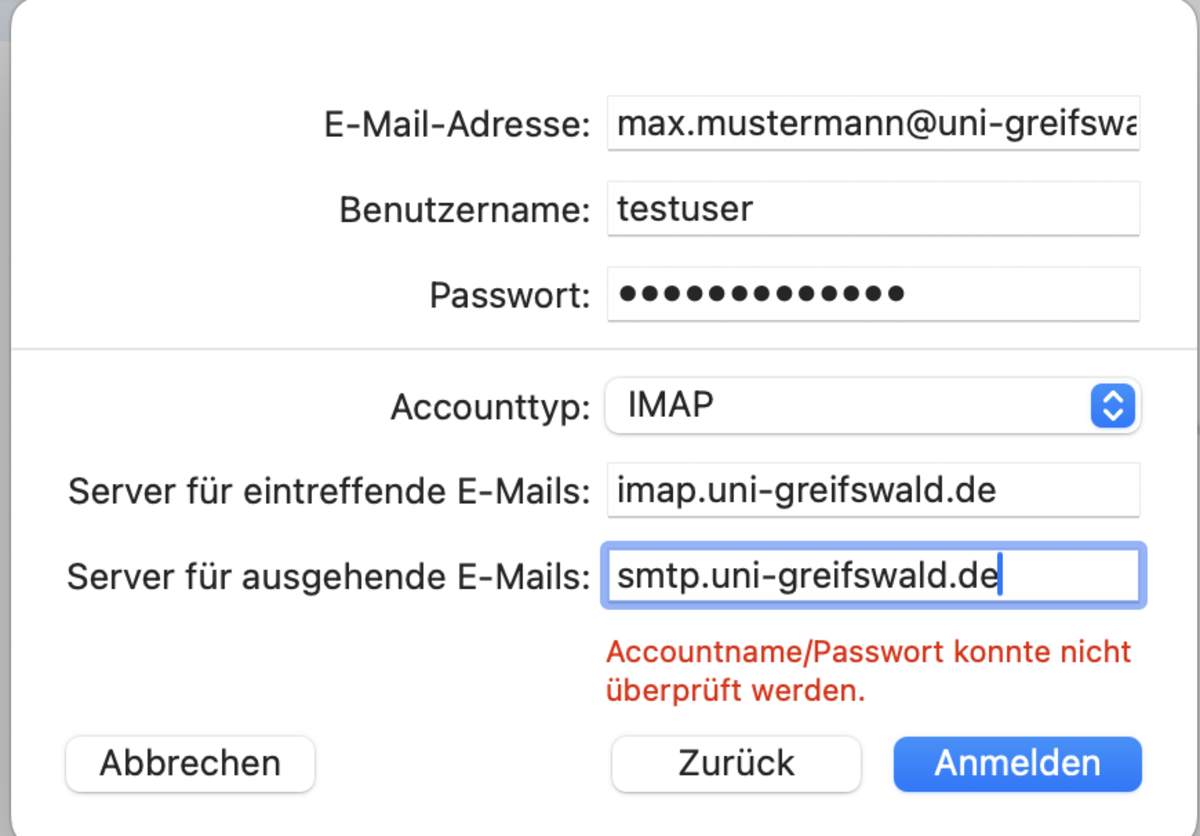
Enter a description of the account in the first field. In the other fields, enter your new email address, your full name, the incoming mail server, your URZ username and an app password.
Modify SMTP server settings
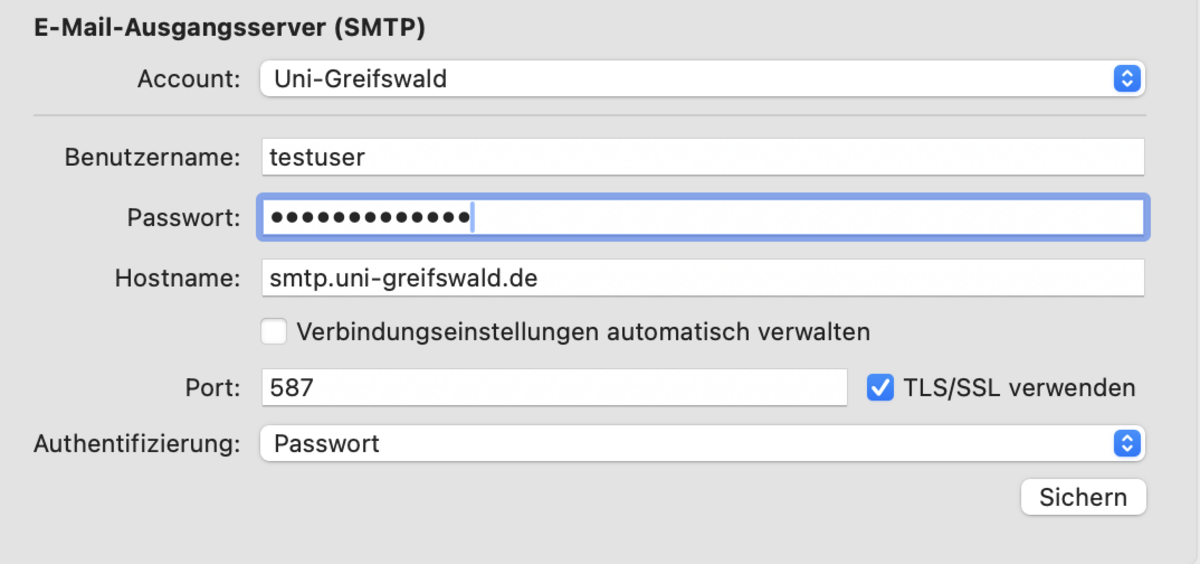
The SMTP server sends your emails. To configure it, go to Settings, select Accounts, click on your university account, and then click on Server settings.
At the bottom of the dialogue box, you will find the settings for the outgoing email server (SMTP). Here, untick the box next to Manage connection settings automatically, then enter port 587, enable TLS/SSL encryption and select Password as the authentication method. Your username is your URZ username and the password is an app password. Then click [Save]. Mail will then check whether the settings are correct and log in to the specified server as a test. If an error message appears, please check the entered values again.